Quick summary
- The usual suspects are screen brightness and refresh rate, weak signal, background apps and location access.
- Check Settings → Battery first to see what is actually using power.
- Heat is the biggest long-term enemy of battery health.
- Swiping apps closed rarely helps. Fixing the cause does.
- An iPhone showing maximum capacity below 80%, or any sign of a swollen battery, means it is time for service.
Menu names vary by brand and software version. If you cannot find a setting, use the search bar at the top of Settings.
1. High screen brightness
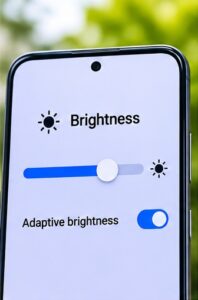
The display is usually one of the hungriest parts of any phone. The brighter it is, the more power it pulls, and phones crank brightness to the maximum outdoors so you can still read them in daylight. Research from Purdue University on OLED phones found that display power rises with brightness, which is why a simple brightness tweak can matter as much as many other settings.
What to do:
- Turn on adaptive or auto brightness. On iPhone, find it under Settings → Accessibility → Display & Text Size. On Pixel, it is under Settings → Display.
- Lower the slider when you are indoors.
- Set the screen timeout to 30 seconds or one minute.
2. Background applications
Leaving an app does not always stop it from working. Messaging, email, social, shopping and fitness apps may keep syncing, refreshing or uploading in the background. Just a couple of badly behaved apps can quietly eat a big slice of your battery while the phone sits in your pocket.
What to do:
- Check your battery usage list (see section 11) and look for apps with heavy background activity.
- On iPhone, open Settings → General → Background App Refresh and set it to Wi-Fi or Off, or switch it off for individual apps.
- On Android, restrict background activity for apps you rarely use. On Pixel and many other phones, Adaptive Battery learns which apps you use less and limits them automatically.
- Uninstall anything you no longer need.
3. Location services
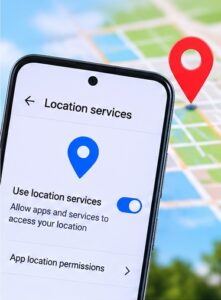
GPS and other location tools are power-hungry, especially when many apps ask for your position in the background. Shopping apps, social networks and weather widgets often request “Always” access when they only need it while open. Apple’s battery guidance points to location access as one of the first places to look.
What to do:
- Set most apps to While Using the App or Ask Next Time.
- Keep “Always” for apps that truly need it, like navigation.
- Turn off Precise Location for apps that only need your general area.
4. Poor network signal
This one surprises people. When Wi-Fi or mobile reception is weak, your phone raises its radio power and keeps scanning for something better. That is why the battery seems to melt in elevators, basements, parking garages, rural areas and moving cars. Apple notes that Wi-Fi uses less power than cellular for data, and it suggests airplane mode where there is no coverage.
What about 5G? Ookla’s testing reported roughly 6% to 11% more drain than 4G, although critics pointed out that the study did not separate standalone and non-standalone 5G networks. The common thread is simple: weak 5G coverage is the real battery killer, because the modem works harder to hold on.
What to do:
- Use Wi-Fi whenever a stable network is available.
- Switch on airplane mode where there is no signal.
- If 5G keeps dropping in and out, try 4G/LTE or your phone’s automatic 5G option.
- Turn on Wi-Fi calling if your carrier supports it.
5. Too many notifications
Every alert can wake the screen, buzz the phone and make the app fetch fresh data. One lively group chat can fire dozens of notifications an hour. Each one is tiny, but together they add up.
What to do:
- Open Settings → Notifications and switch off apps that do not matter.
- Mute noisy group chats.
- Use Focus modes on iPhone, or Do Not Disturb and Modes on Android, at work and at night.
- Switch email from push to timed fetch if you do not need instant delivery.
6. High refresh rate
A 90Hz or 120Hz screen redraws the image more often than a 60Hz one. Scrolling feels silky, but it costs power. In older tests of the Galaxy S20 series, PhoneArena measured battery life dropping by roughly 20% to more than 30% in a browsing test at 120Hz. Newer phones with LTPO displays can drop the refresh rate dynamically, sometimes as low as 1Hz to 10Hz for still content, which shrinks the penalty a lot. An Always-On Display also keeps part of the screen lit all day.
What to do:
- Choose the adaptive refresh rate option if your phone has one.
- Switch to standard (60Hz) when you need extra hours, such as on a long trip.
- Turn off Always-On Display if you rarely look at it.
7. Gaming and video streaming
Demanding 3D games push the processor and graphics chip hard, keep the screen bright and generate heat. Streaming 4K or HDR video, especially over mobile data, keeps the screen, processor and radio busy all at once.
What to do:
- Lower graphics quality and frame-rate caps in game settings.
- Drop streaming quality on small screens, and download videos over Wi-Fi.
- Let the phone cool down if it gets hot, and avoid heavy gaming while charging.
8. Outdated software
Bugs in the operating system or in a single app can cause runaway processes that quietly drain the battery. Updates often include fixes and efficiency improvements. One honest caveat: right after a major update, your phone may spend a day or two re-indexing photos and files, which can temporarily raise battery use. If the drain lasts more than a few days, check for a follow-up patch.
What to do:
- Install system updates (Settings → General → Software Update on iPhone, Settings → Software update on most Android phones).
- Update your apps from the App Store or Google Play.
- If one app misbehaves, update it, clear its cache or reinstall it.
- Restart your phone now and then to clear stuck processes.
9. Old or damaged battery
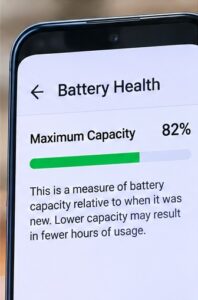
Every lithium-ion battery ages. Each charge cycle shaves off a little capacity, and after a couple of years your phone may hold noticeably less than when it was new. Heat, constant full charges and deep discharges speed things up. According to Apple Support, iPhone 15 models and later are designed to keep up to 80% of their original capacity at 1,000 complete charge cycles, while earlier models are rated at 500. A fair rule of thumb is that daily-use phones show clear wear after two to three years.
What to do:
- Check your battery health (section 11 and section 15).
- Turn on charging protection features (Android and iPhone).
- Avoid leaving the phone at 0% or 100% for long periods.
- If capacity has dropped a lot, replace the battery instead of the phone.
10. Extreme temperatures
Batteries like it mild. Apple says iPhone works best between 0°C and 35°C, with 16°C to 22°C as the sweet spot, and warns that using or charging a device above 35°C can permanently reduce battery capacity. Charging may even be limited above 80% when the battery gets too hot. Cold is less serious: performance dips, but it returns to normal once the phone warms up.
What to do:
- Never leave your phone on a car dashboard, in direct sun or near heat.
- Avoid heavy tasks while charging in hot weather.
- Take off a thick case if the phone gets warm while charging.
- In winter, keep it in an inside pocket and let it warm up before charging.
How to check what is draining your battery
Before changing everything, find the real culprit. It takes less than a minute.
On iPhone
- Open Settings and tap Battery.
- Look at the usage by app for the last 24 hours or 10 days.
- Watch for labels such as Background Activity, Location or No Cell Coverage, which hint at the cause.
- On iPhone 15 and later, tap Battery Health & Charging to see maximum capacity. On older models, tap Battery Health.
On Android (Samsung, Pixel and others)
- Open Settings and tap Battery (on Samsung, Battery or Battery and device care).
- Open Battery usage to see which apps and features used the most power.
- Tap an app to check whether the drain came from the foreground or the background.
- Restrict or uninstall apps that use a lot of power and that you rarely open.
If an app you barely use sits near the top of the list, that is your first suspect. For more detailed walkthroughs, see our guides on checking battery health on Android and checking battery health on iPhone.
Best Android battery-saving settings
Names differ between Samsung, Pixel, Xiaomi, OnePlus and others, but these options exist on most phones:
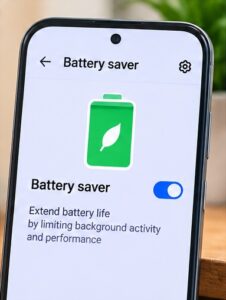
- Battery Saver / Power Saving: reduces background activity and may lower performance and refresh rate.
- Adaptive Battery: learns your habits and limits power for apps you rarely use (Settings → Battery → Adaptive preferences on Pixel).
- Put unused apps to sleep (Samsung): stops rarely used apps from running in the background.
- Adaptive Charging (Pixel) and Battery Protection (Samsung): cut down the time spent at 100%. Recent Pixel software also offers an 80% charge limit, and Samsung’s Maximum protection caps charging at 80%.
- Adaptive brightness and short screen timeout.
- Refresh rate: choose adaptive or standard.
- Dark mode: helps on OLED screens, though modestly (see the myths below).
- Wi-Fi, Bluetooth, NFC and location: switch off what you are not using.
Google also explains these options in its Pixel battery help page. Want the full walkthrough? Read our complete Android battery-saving guide.
Best iPhone battery-saving settings
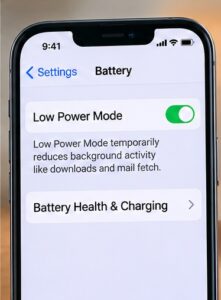
- Low Power Mode: Settings → Battery → Low Power Mode. It dims the display, limits background activity and pauses some automatic tasks. If it switches on automatically, it turns itself off again once you charge past 80%, as Apple’s user guide explains.
- Adaptive Power (iOS 26): found under Settings → Battery → Power Mode. It makes small performance tweaks, slightly lowers brightness and limits background activity on heavy days, and Low Power Mode still steps in at 20%. 9to5Mac reports it is on by default on the iPhone 17 series and iPhone Air, and it is available on iPhone 15 Pro and newer.
- Optimized Battery Charging: reduces the time your iPhone spends fully charged.
- Background App Refresh: set to Wi-Fi or Off.
- Auto-Brightness and Auto-Lock: keep both on, with Auto-Lock at 30 seconds or one minute.
- Location Services: choose While Using the App.
- Mail fetch: a longer interval uses less power than push.
- Wi-Fi and Bluetooth: Apple says they draw very little power when idle, so you can leave them on.
Using a Samsung or Pixel instead? Jump back to the Android settings, or browse more mobile tips on Horaa.xyz.
Common battery myths, busted
“Closing apps saves battery.” In most cases it does not. iOS and Android suspend background apps automatically, so swiping them away just makes them restart from scratch next time. Close an app only when it freezes or misbehaves.
“Charging overnight ruins the battery.” Not on modern phones. Apple confirms iPhone stops charging when full, so it is safe to leave it plugged in. Heat and long hours at a very high charge matter more, which is why Optimized Charging, Adaptive Charging and Battery Protection exist.
“Dark mode always saves a lot of battery.” Only on OLED screens, and the saving depends on brightness. Purdue researchers found it saved about 3% to 9% on average at 30% to 50% brightness, with bigger gains at high brightness. On LCD screens the benefit is minimal.
“You should drain the battery to 0% before charging.” That belongs to older battery types. Lithium-ion batteries prefer partial charges.
“5G always wrecks your battery.” Not always. Signal strength, network type and modem efficiency decide the outcome, and weak 5G coverage causes most of the trouble.
“Battery booster apps help.” Most make little difference, and some use more power than they save. Your phone’s built-in tools are more reliable.
When to replace your battery
Settings can only do so much. It may be time for a new battery if:
- The battery drains quickly even after you adjusted settings, updated and restarted.
- Your iPhone’s maximum capacity is below 80%. Apple treats that as significantly degraded.
- The phone shuts down suddenly at 20% to 40%, or the percentage jumps around.
- It slows down, restarts or overheats during normal use.
- It will not hold a charge.
Safety warning: swollen batteries. If the back panel is lifting, the screen is bulging or the phone rocks on a flat surface, the battery may be swelling. Stop charging and using the phone, power it down, keep it away from heat, and do not press, puncture or open it. Take it to an authorised service centre as soon as possible. iFixit’s guide explains why swollen batteries are a fire risk.
Choosing a repair provider: go to the manufacturer or an authorised repair provider, or a reputable shop that uses quality batteries. Avoid very cheap, unbranded batteries and chargers, which may lack proper safety protection. Before you pay, rule out software problems: restart, update and check your usage list first. A battery replacement usually costs far less than a new phone and can give you another two to three years. If you are weighing an upgrade instead, see our picks for phones with the best battery life.
Frequently asked questions
Why does my phone battery drain so fast even when I’m not using it?
The usual suspects are background apps, weak signal, location access, frequent notifications and software bugs. Open your battery usage list and look at background activity and cellular standby to find the cause.
Is it bad to charge my phone overnight?
No. Modern phones stop charging when the battery is full. To reduce the time spent at 100%, turn on Optimized Battery Charging on iPhone, Adaptive Charging on Pixel or Battery Protection on Samsung.
Does fast charging damage the battery?
Fast charging creates more heat, and heat is the main cause of long-term battery wear. Modern phones manage speed and temperature well, but avoid fast charging in hot places, under pillows or while gaming.
Does 5G drain more battery than 4G?
Sometimes. Some measurements show 5G using somewhat more power, and weak 5G coverage can drain the battery quickly. If your signal is poor, switching to 4G/LTE may help.
Does dark mode save battery?
Only on OLED screens, and the saving is modest at normal brightness. Purdue University researchers measured roughly 3% to 9% at 30% to 50% brightness. On LCD screens the benefit is minimal.
Does closing apps save battery?
Usually not. Both iOS and Android suspend background apps automatically, so swiping them away often forces extra work when you reopen them. Close an app only if it is frozen or misbehaving.
When should I replace my phone battery?
Consider a replacement if your iPhone’s maximum capacity falls below 80%, the phone shuts down suddenly at 20% to 40%, it overheats in normal use, or it will not hold a charge. If the battery looks swollen, stop using the phone and get professional help immediately.
How long should a phone battery last?
A new battery should last a full day for most people. Apple designs iPhone 15 models and later to keep up to 80% of their capacity at 1,000 complete charge cycles, and many users see two to three years of good performance.
Final thoughts
A fast-draining battery is rarely a mystery. Start by checking your battery usage to see what is really eating power. Then tackle the big drains: lower or automate brightness, pick an adaptive refresh rate, limit background activity and location access, tame your notifications and avoid weak-signal situations. Keep your software updated, protect your phone from heat, and use the built-in tools on your phone, such as Low Power Mode, Adaptive Power and Optimized Battery Charging on iPhone, or Battery Saver, Adaptive Battery and charging protection on Android.
Skip the myths about closing apps and overnight charging, and focus on what really matters: heat, time at full charge and the age of the battery. And if the battery itself is worn out, replace it through a trusted provider. Your phone may well last for years.
Have a battery tip that worked for you? Tell us in the comments, and keep exploring more phone tips on Horaa.xyz.
Sources and further reading
- Apple Support: Charge and maintain your iPhone battery
- Apple Support: iPhone battery and performance
- Apple Support: Battery and performance of iPhone 11 and later
- Apple: Maximizing Battery Life and Lifespan
- Google Pixel Help: Get the most life from your Pixel battery
- Purdue University: Dark mode and battery life
- Android Authority: Phone refresh rate explained
- ISPreview: Ookla 5G vs 4G battery drain
- iFixit: What to do with a swollen battery