Want to stop apps running in the background on Android? You close an app, lock your phone and slip it into your pocket, yet an hour later the battery has dropped way more than it should have. Sound familiar?
Chances are a few apps are still busy behind the scenes: syncing data, refreshing feeds, checking your location or waiting to send you a notification. That activity can eat into your battery and mobile data, and on older phones it can even make things feel sluggish. If your battery problems go beyond this, our guide to why your phone battery drains fast covers the other common causes.
The good news is that you’re in control. In this guide, I’ll walk you through five simple ways to stop apps from running in the background on Android, show you how to spot the real battery hogs, and explain which apps you should leave alone. I’ll also bust a popular myth: closing apps all the time doesn’t save battery the way most people think.
What Does “Running in the Background” Mean?
A background app is simply an app that isn’t on your screen but is still doing some work. Maybe it’s waiting for a message, uploading a photo or updating your location.
Open app vs. background app
An open (foreground) app is the one you’re actively using right now. A background app is one you’ve switched away from. Android might keep it paused in memory so it reopens quickly, or it might let it run specific tasks. Those are two very different things, and the difference matters later in this guide.
How Android manages background processes
Android already does a lot of the heavy lifting. Built-in features called Doze and App Standby defer background network activity and syncs for apps you aren’t using, as Google explains in its Doze and App Standby documentation. Manual controls simply let you go a step further when one app misbehaves.
Why some apps need background access
Plenty of apps are only useful because they work in the background. Think of:
- WhatsApp receiving messages
- Gmail checking for new emails
- Google Photos backing up your pictures
- Location services updating maps and weather
- Social media apps refreshing your feed and alerts
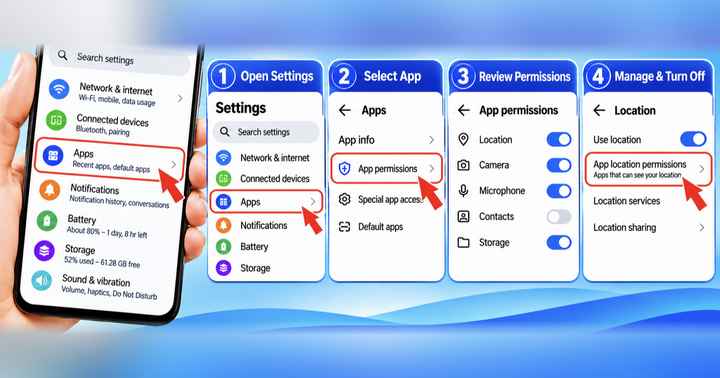
Location is the one people worry about most. If that’s your concern, see which apps access your location on Android.
Why Stop Unnecessary Background Apps?
Limiting background activity for the right apps can help in five ways:
- Better battery performance. Fewer background tasks means less power used while your screen is off.
- Less mobile data used. Apps that constantly sync can burn through a limited data plan.
- Fewer unwanted notifications. Restricted apps send fewer pings.
- A smoother phone in some situations. On older or low-memory devices, fewer active processes can free up resources.
- Less wasted resources. Apps you rarely open have no reason to keep working.
5 Ways to Stop Apps From Running in the Background
These methods go from gentlest to most hands-on. Start with Method 1, since it’s usually all you need.
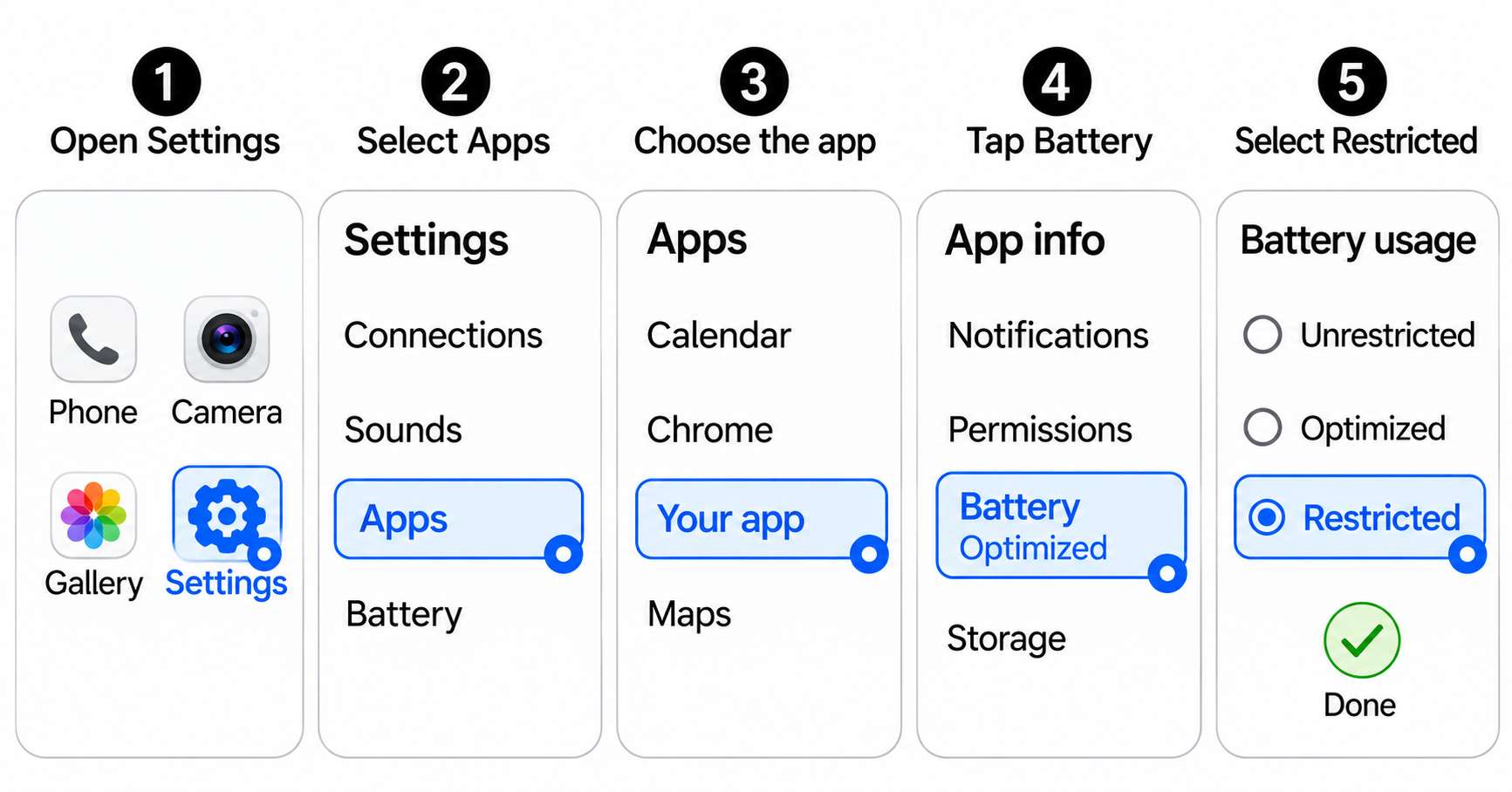
Method 1: Restrict background battery usage
This is the safest and most effective option for a single problem app.
- Open Settings.
- Tap Apps (or Apps & notifications).
- Choose the app you want to limit.
- Tap App battery usage or Battery.
- Select Restricted, if available. Most apps are happiest on Optimized.
Method 2: Put unused apps to sleep
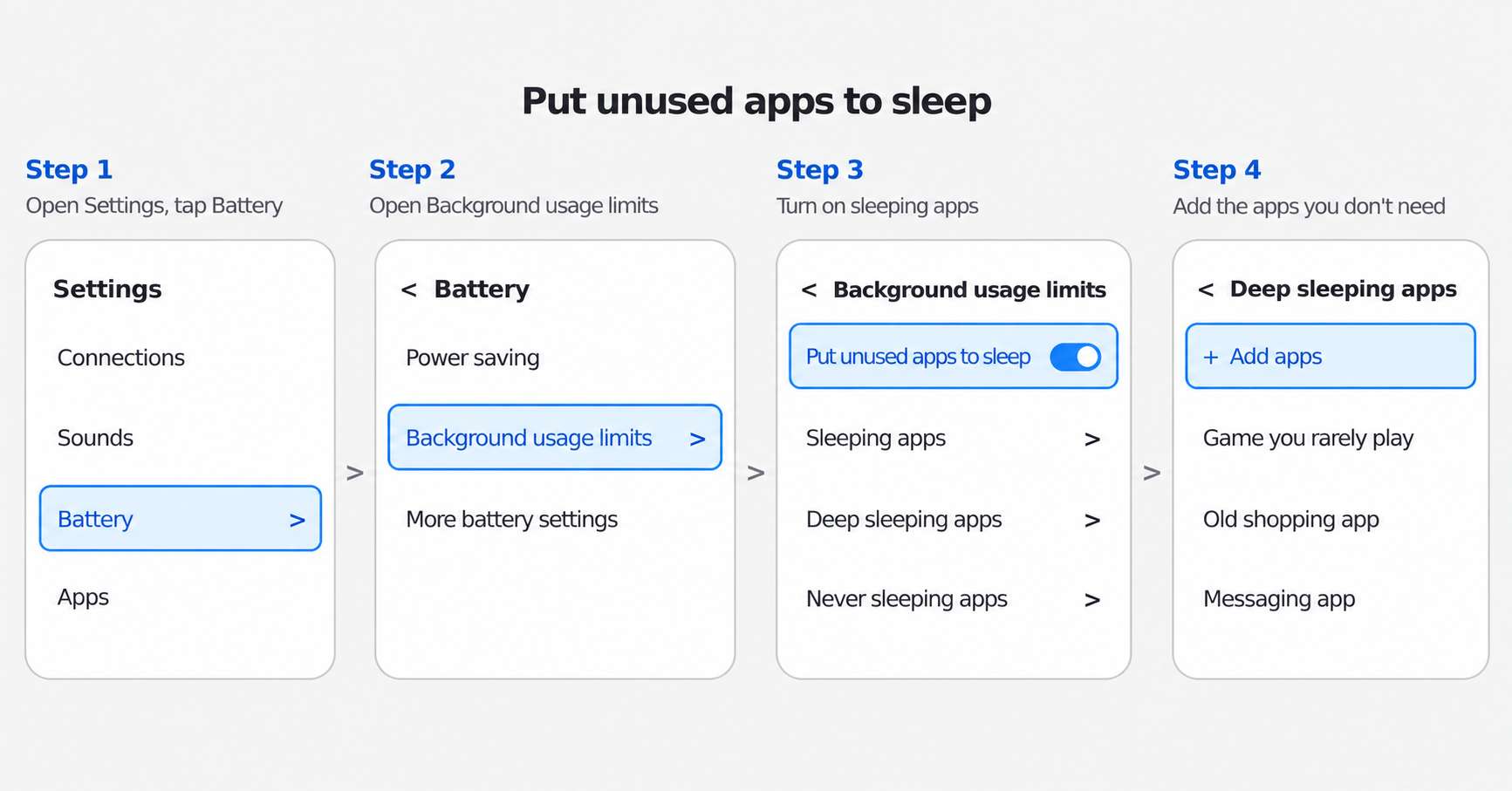
Some phones, Samsung in particular, can put rarely used apps to sleep so they stay quiet until you open them again.
- Open Settings.
- Go to Battery or Battery and device care.
- Tap Background usage limits.
- Turn on Put unused apps to sleep or Deep sleeping apps.
- Add the apps you don’t need running in the background.
Method 3: Turn off background data
If an app is quietly using your mobile data, you can shut that down.
- Open Settings.
- Tap Network & internet or Connections.
- Open Data usage.
- Select the app.
- Switch off Background data, if available.
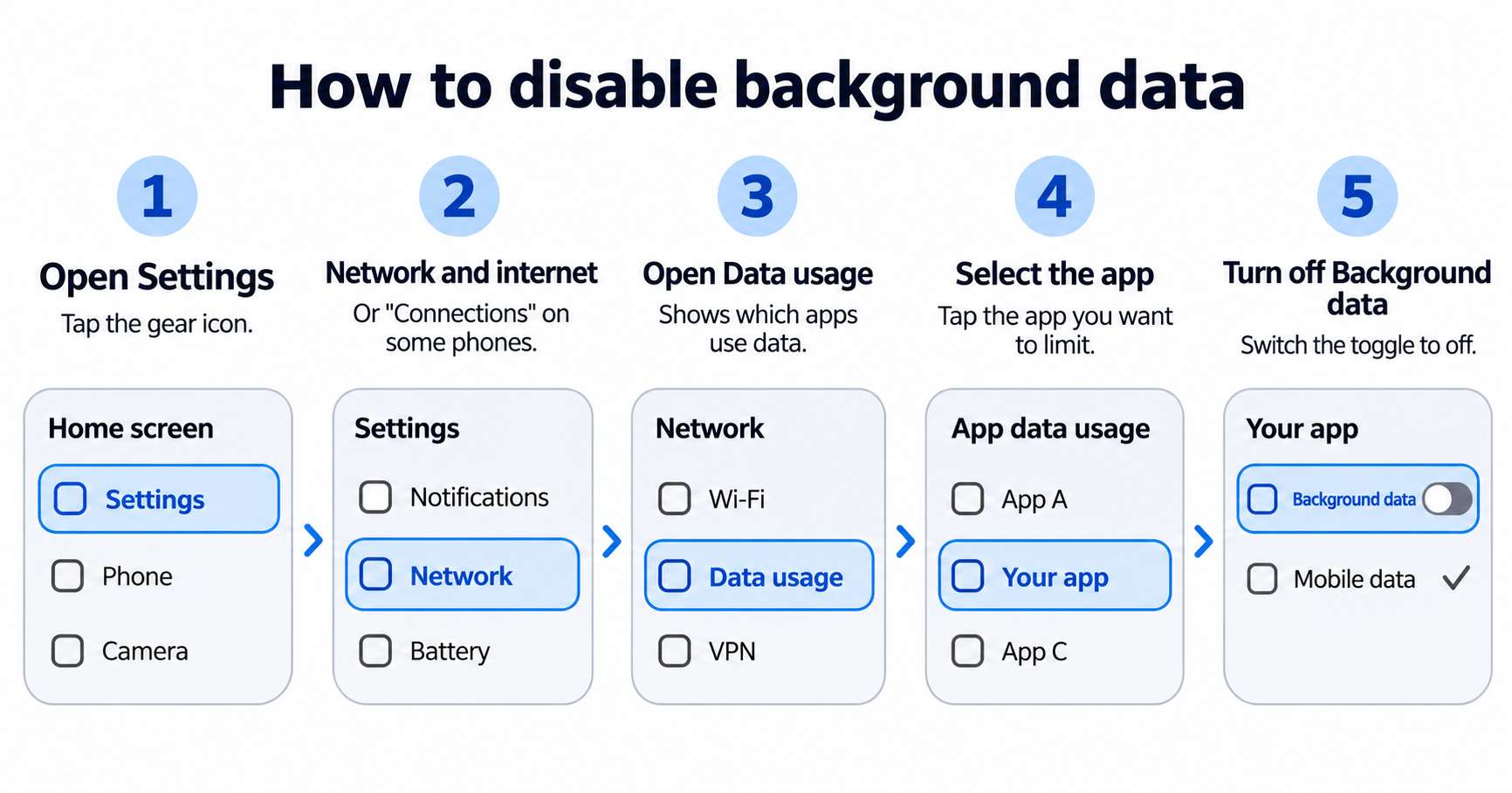
Just remember: the app may then only update when you open it, and notifications might be delayed while you’re on mobile data. To restrict most apps at once, turn on Data Saver in the same menu.
Method 4: Check running services (advanced)
This one’s for the curious. It shows you what’s currently active in memory.
- Enable Developer options: go to Settings → About phone and tap Build number seven times. On Samsung, open Software information first.
- Open Settings → System → Developer options.
- Tap Running services (called Running apps on some versions, and missing on a few phones).
- Review what’s active and how much memory it uses.
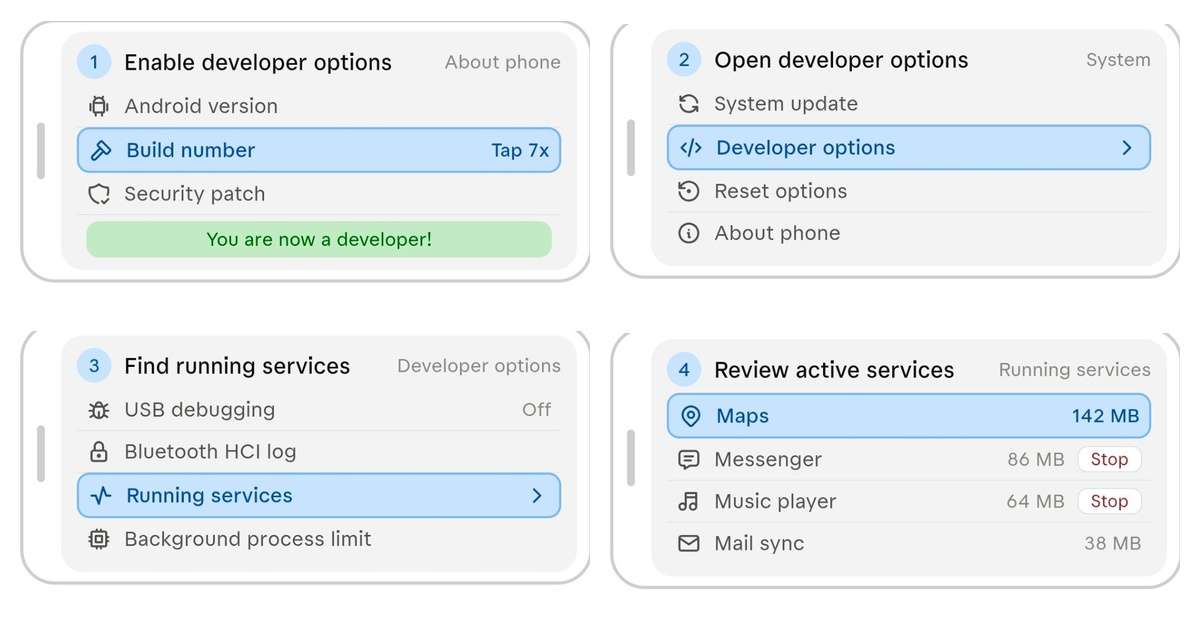
Please don’t randomly stop system services. Many entries are essential parts of Android, such as the interface, phone and connectivity services. Stopping them can cause glitches, missed calls or surprise restarts. Use this screen to spot suspicious apps, then handle them with Method 1 or 2.
Method 5: Force stop an app
Force Stop ends an app’s activity right away.
- Open Settings.
- Tap Apps.
- Pick the app.
- Tap Force stop and confirm.
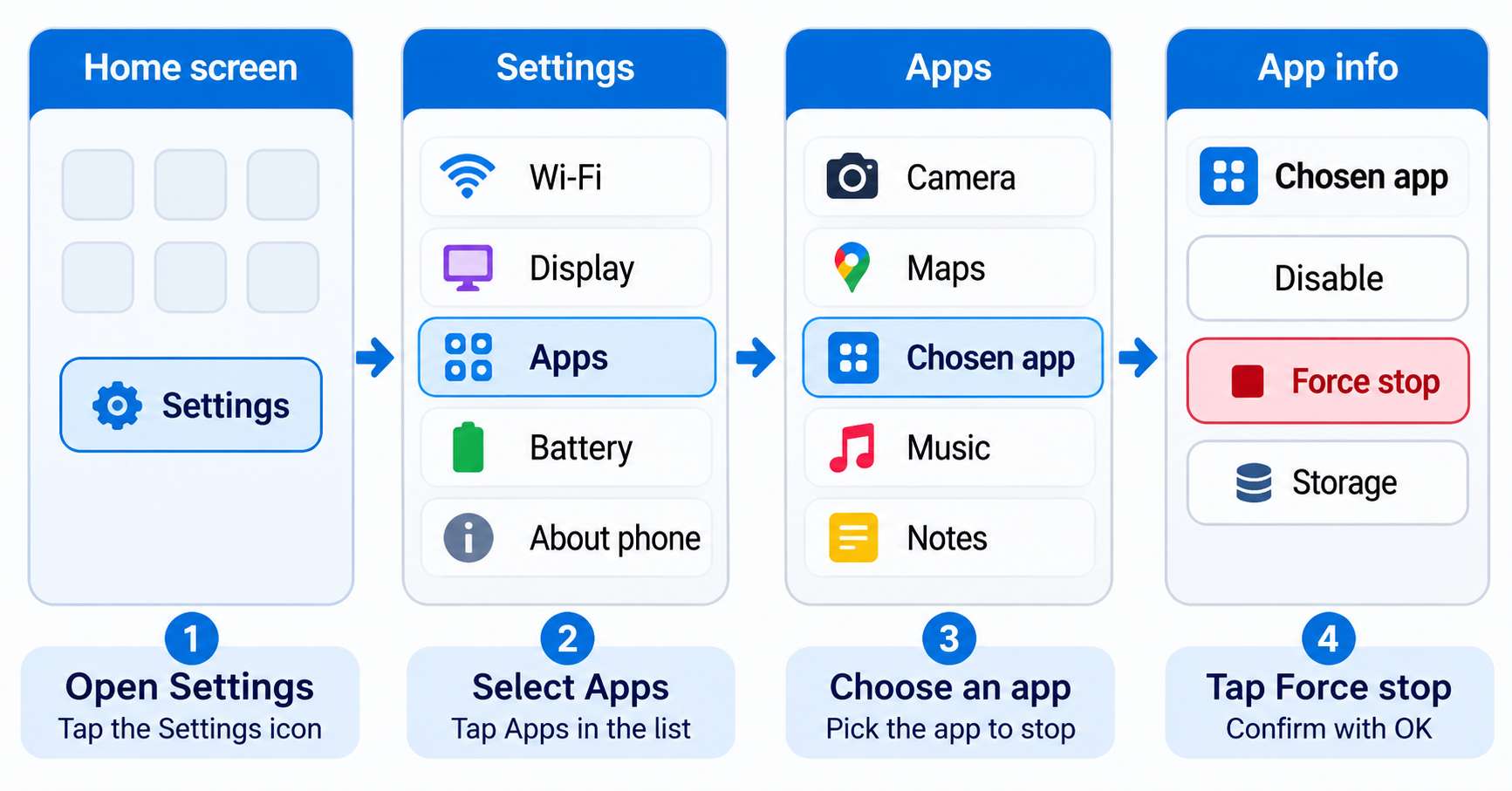
It’s only a temporary fix. The app can start again when you open it, or when something triggers it, like a notification or an alarm. If the same app keeps coming back, go back to Method 1.
How to Find Which Apps Are Draining Your Battery
Before you restrict anything, find out who the real culprits are. Guessing usually means limiting the wrong apps.
- Go to Settings → Battery (or Battery and device care).
- Tap Battery usage.
- Look for apps with unusually high usage.
- Check background usage specifically, if your phone shows it separately.
- Spot apps that use lots of power but that you rarely open.
- Decide which ones are worth restricting.
A good rule of thumb: an app you use for an hour a day will naturally sit near the top of the list, and that’s fine. Be suspicious of apps that rank high when you hardly touch them.
Apps You Should Not Restrict
Restricting the wrong app can lead to missed messages, silent alarms or broken features. Be careful with these:
| App category | Why be careful? |
|---|---|
| Messaging apps | Notifications may be delayed |
| Email apps | New email alerts may stop |
| Alarm apps | Some scheduled functions may fail |
| Navigation apps | Background location may be affected |
| Backup apps | Automatic backups may pause |
| Security apps | Protection features may be affected |
Restrictions can affect notifications, syncing, location tracking and other essentials. If something stops working after you change a setting, just switch the app back to Optimized or Unrestricted.
Does Closing Background Apps Save Battery?
For most people, honestly, not really. In some cases it makes things worse.
Background activity vs. cached apps
Not every app in your recent apps list is actively doing something. Many are just cached, meaning they’re paused in memory so they open fast. A cached app uses very little power.
Why Android keeps apps in memory
Empty memory doesn’t help anyone. Android keeps recently used apps in RAM so switching back is quick, and clears them automatically when it needs the space.
Why constantly force stopping apps backfires
When you force stop an app and reopen it later, your phone has to load it from scratch, which takes more effort than resuming it from memory. Many apps will also just restart on their own. Do this over and over and you could end up using more battery, not less. For a look at how Android handles power under the hood, see the Android Open Source Project’s power management overview.
When restricting an app does make sense
- An app consistently shows high background battery use
- An app uses mobile data you didn’t expect
- You rarely use the app, yet it keeps syncing or sending alerts
- An app started draining your battery after an update
More Tips to Improve Android Battery Life
Background management is just one piece of the puzzle. These habits often help even more:
- Lower your screen brightness. The display is usually one of the biggest power users. Auto-brightness helps.
- Turn on Adaptive Battery. It learns which apps you use and limits the rest. Look under Settings → Battery, where it may appear as Adaptive preferences.
- Cut unnecessary notifications. Fewer alerts mean fewer screen wake-ups.
- Uninstall apps you don’t use. Unused apps can still run background services.
- Keep Android and your apps updated. Updates often include battery and performance fixes. Google’s Android Help Center has official steps for checking for updates.
- Limit location permissions. Choose While using the app or Ask every time where you can. Our guide on stopping Android apps from tracking your location in the background shows how.
- Use Battery Saver when you need it. It’s a handy safety net on long days away from a charger.
Final Thoughts
The best way to stop apps running in the background on Android is to be selective, not aggressive. Check your battery usage to find the real culprits, restrict only those, and leave essentials like messaging, email and alarms alone. Pair that with a few simple habits, like keeping your software updated and limiting location access, and your phone should last longer between charges without losing the features you rely on.
Quick answers
Frequently Asked Questions
Tap a question to see the short answer.
How do I stop apps from running in the background on Android?
How can I see which apps are running in the background?
Does restricting background apps improve battery life?
Is it safe to put apps into deep sleep?
Why do apps restart after I force stop them?
Should I close all background apps?
How do I stop apps from using mobile data in the background?
Can background apps slow down my Android phone?
Sometimes, especially on older phones with limited RAM or when lots of apps are active. On modern phones the effect is usually small. Slowdowns are more often caused by low storage, outdated software or a single misbehaving app.