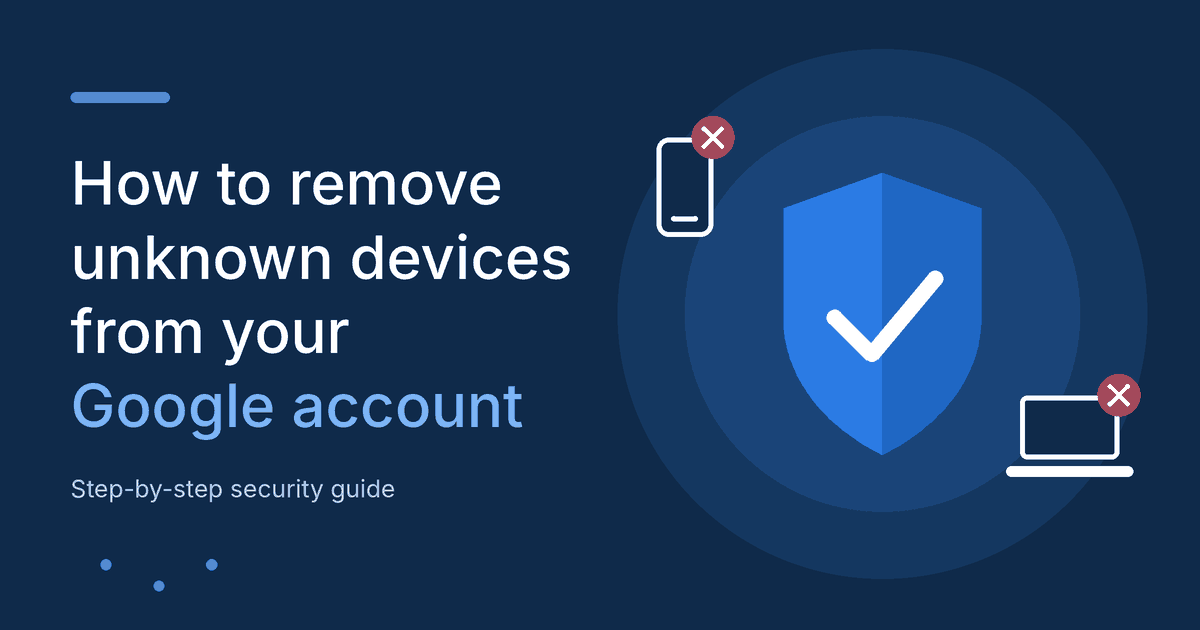
Remove unknown devices from Google Account. You open your Google Account, scroll to the device list, and spot something you don’t recognize. A phone model you’ve never owned. A city you’ve never visited. It’s an uncomfortable feeling, because your Google Account holds your email, photos, contacts, saved passwords, documents and often your payment details too.
Take a breath. In most cases there’s a harmless explanation, and even when there isn’t, Google gives you the tools to kick an unwanted session out in under a minute. This guide walks you through exactly how to check your devices, remove the ones you don’t trust (on desktop, Android and iPhone), and lock your account down so it doesn’t happen again.
Quick answer: how to remove unknown devices from Google Account
- Go to google.com/devices (Google Account device activity) and sign in.
- Select Manage all devices.
- Click the device you don’t recognize.
- Choose Sign out and confirm.
- Then change your password and turn on 2-Step Verification (details below).
Why is there an unknown device in my Google Account?
An unfamiliar entry does not automatically mean you’ve been hacked. Here are the most common innocent reasons:
- An old phone or tablet you stopped using but never signed out of.
- A shared or public computer at work, school, a library or a hotel.
- A phone you sold or gave away without removing your account.
- Another browser or Chrome profile on a computer you own.
- A smart TV, speaker or streaming stick you signed in on.
- A confusing device name. Sometimes your own phone shows up as a model number or just “Windows computer.”
- A wrong-looking location. Google estimates location from your internet connection, so it can point to a nearby city or your provider’s data center rather than your real position.
Even so, treat anything you can’t explain as suspicious until you’ve checked it. Signing out costs you nothing.
How to check which devices are connected to your Google Account
Review first, remove second. A quick look at the details usually tells you whether a device is yours.
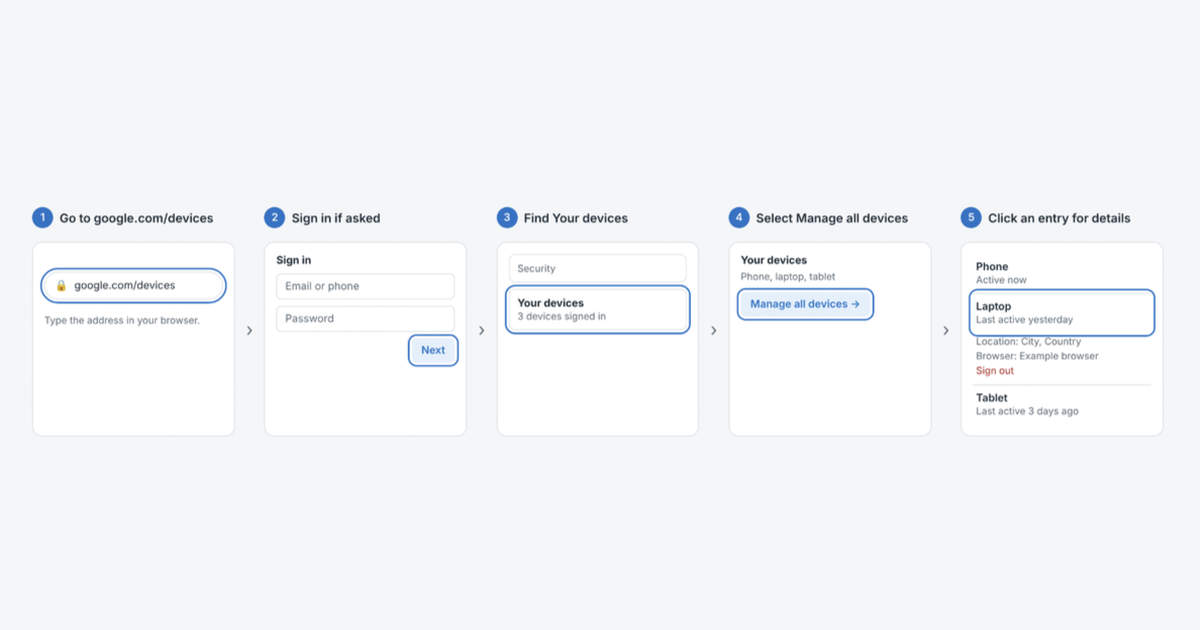
- Open your browser and go to google.com/devices.
- Sign in to your Google Account if asked.
- Find the Your devices section.
- Select Manage all devices.
- Click each entry to see its details.
For every device, ask yourself four things:
- Does the name and type match something I own?
- Was it active when I was using my account? Check the last activity.
- Does the approximate location make sense? Remember it can be off.
- Does the browser or app look familiar?
Tip: Also open your recent security activity. It lists new sign-ins, password changes and recovery updates, which can reveal a problem the device list doesn’t show.
How to remove an unknown device (any browser)
This works on a computer, or in a mobile browser.
- Visit google.com/devices and sign in.
- Choose Manage all devices.
- Click the device or session you don’t recognize.
- Select Sign out.
- Confirm if Google asks.
- Repeat for every other entry you can’t explain.
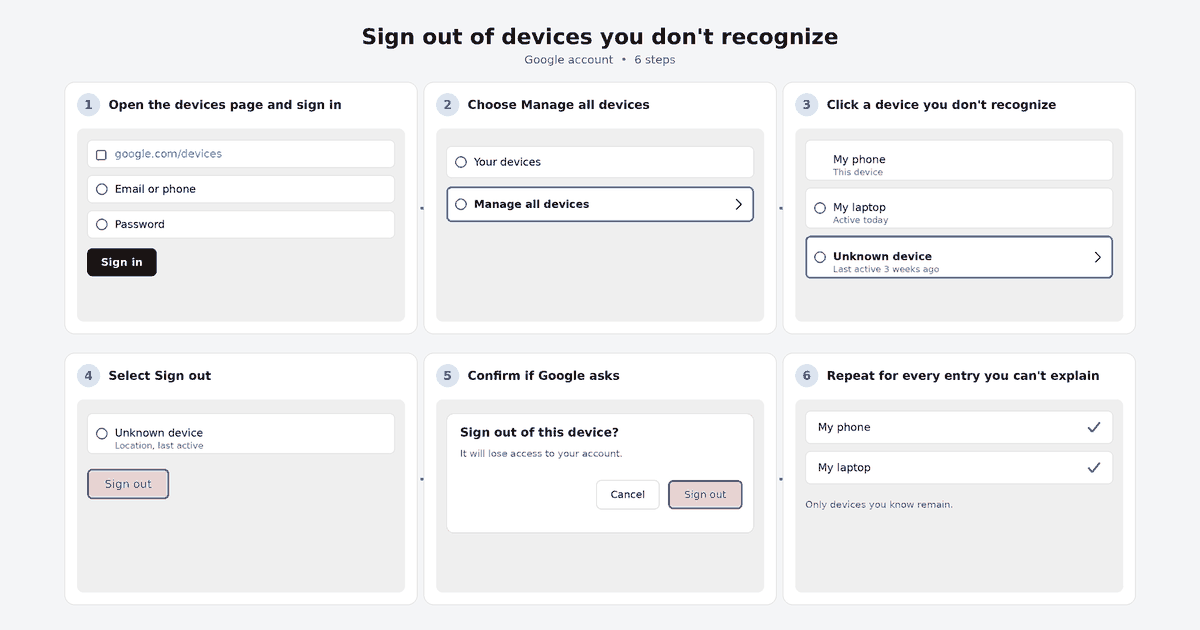
What signing out does: it ends that session’s access, so whoever is using it must sign in again with your password and any verification step.
What it doesn’t do: it doesn’t wipe the device or erase your past activity history. And if someone already knows your password, they can sign back in. That’s why the security steps further down matter just as much.
How to remove an unknown device on Android
Menu names vary a little by phone brand and Android version, but the path is similar:
- Open Settings, tap Google, then Manage your Google Account.
- Open the Security tab. You may need to swipe along the top to find it.
- Scroll to Your devices and tap Manage all devices.
- Tap the unfamiliar device and choose Sign out.
You can also do this from the Google app: tap your profile picture, choose Manage your Google Account, and follow the same steps.
Lost your Android phone? Use Google’s Find Hub (the service formerly called Find My Device) to locate it, lock it, or erase it. Erasing is permanent, so only do it when you don’t expect to get the phone back.
How to remove an unknown device on iPhone or iPad
On an iPhone, you manage Google devices through the Google app or Safari, not through iOS Settings:
- Open the Google app (or Gmail) and tap your profile picture.
- Tap Manage your Google Account.
- Open the Security tab.
- Scroll to Your devices and tap Manage all devices.
- Select the device you don’t recognize and tap Sign out.
Prefer a browser? Just visit google.com/devices in Safari.
What to do if you think someone accessed your account
If something looks genuinely suspicious, signing out one device is only step one. Work through this list in order:
- Change your password right away. Pick a long, unique one you’ve never used anywhere else. Changing it also signs out most other sessions.
- Turn on 2-Step Verification. If you can, use a passkey, security key or authenticator app instead of text-message codes. Our guide on setting up two-step verification shows how.
- Check your recovery email and phone number. Attackers often add their own so they can get back in later. Remove anything you don’t recognize.
- Review your recent security activity for sign-ins or changes you didn’t make.
- Remove unfamiliar third-party apps with account access, along with any you no longer use.
- Check your Gmail settings. Look in Forwarding and POP/IMAP and your filters for forwarding addresses or rules that delete or hide messages. Attackers sometimes use these to quietly copy your mail.
- Run Google’s Security Checkup. It flags weak spots and walks you through fixes.
- Secure your other accounts. If you reuse your Google password elsewhere, especially for banking or social media, change it there too.
Can’t sign in at all? Use Google’s account recovery page and try it from a device and location you normally use, since that makes recovery much more likely to succeed.
Is changing my password enough?
It’s a big help, but it isn’t the whole job. A careful cleanup also covers three hiding places: apps you’ve granted access to, recovery details that were quietly changed, and Gmail rules that forward your mail. That’s why the checklist above goes beyond the password.
If you’d like help building a stronger password habit, read our guide to creating strong passwords.
How to protect your Google Account in the future
Good account security is mostly small habits. These cover most real-world risks:
- Use passkeys or a strong, unique password. A password manager makes this painless. Google explains passkeys on its passkeys page.
- Keep 2-Step Verification on, and keep your backup options up to date.
- Never share verification codes, even with someone claiming to be from Google or your bank.
- Sign out on shared computers, or use a private browsing window.
- Sign out and factory reset before you sell or give away a device.
- Keep devices and browsers updated so security fixes get installed.
- Watch for phishing. Don’t sign in through links in unexpected emails or texts. Go to the official site yourself. Our phishing awareness guide shows what to look for.
- Check your devices every two to three months, and whenever you get a new phone or a security alert.
For official step-by-step help straight from the source, see Google’s support page on how to check your devices and sign out. More guides like this are in our Cybersecurity & Privacy section.
Frequently asked questions
Can I remove an unknown device from my Google Account remotely?
Yes. Open google.com/devices, choose Manage all devices, select the device and tap Sign out. You don’t need to have the device with you.
Does an unknown device mean my account was hacked?
Not necessarily. Old phones, shared computers, other browsers and inaccurate location data are all common causes. Check the details, and if something still looks wrong, follow the security steps above.
Why does Google show the same device more than once?
Different browsers, apps or profiles on one device can appear as separate sessions. Open each entry and compare names, activity and locations.
Will signing out delete anything from that device?
No. Signing out only removes that device’s access to your account from then on. To wipe a lost Android phone, use Find Hub to erase it.
Does changing my Google password remove all unknown devices?
It signs out most sessions, but you should still review your devices manually and check your recovery options, connected apps and Gmail settings.
Can someone read my Gmail without me knowing?
It’s possible if they have your password, trick you with phishing, or use a connected app or a hidden forwarding rule. Regular security checks and 2-Step Verification greatly reduce the risk.
How often should I check my devices?
Every two to three months is a good rhythm. Also check whenever you replace a phone, travel, or receive a security alert from Google.
Final thoughts
Seeing a device you don’t recognize is unsettling, but you’re more in control than it feels. Review the details, sign out anything that doesn’t belong, then follow up with a strong password, 2-Step Verification, and a quick look at your recovery options and connected apps. A few minutes of attention every few months is one of the best things you can do for your privacy.
Note: Google updates its menus from time to time. If a label looks different on your screen, look for the Security tab and the Your devices section.