Think about everything your phone knows about you right now. Your bank details, your photos, your location, your messages, your passwords (even the ones you swore you’d change last year). Now imagine a stranger holding all of it.
Protect Personal Information online
Why Online Privacy Matters More Than Ever
Most people think hackers go after “important” targets. They don’t. Most attacks are automated: software tries stolen passwords on thousands of sites at once, and scam messages are sent to millions of inboxes hoping a few people click. You’re not being singled out. You’re simply in the net.
When someone does get in, the damage goes beyond money. Criminals can take over your email, impersonate you to your friends, open accounts in your name or leak private photos. Cleaning that up can take months.
Here’s the encouraging part. Most successful attacks rely on the same few mistakes: reused passwords, rushed clicks and outdated software. Fix those, and you’re already ahead of most people. For a broader overview of everyday digital safety, the Cybersecurity and Infrastructure Security Agency (CISA) publishes simple, trustworthy guidance, and we’ll point to a few more helpful resources along the way.
1. Use Strong and Unique Passwords
Your password is the front door to your digital life, and a surprising number of people still use the same key for every door.
Here’s why that’s dangerous. When a website gets breached, the stolen email-and-password pairs end up in lists that criminals trade. They then try those same pairs on banks, email providers and shops. It’s called credential stuffing, and it works because people reuse passwords.
What to do:
- Go long, not clever. A passphrase like four random words strung together is much harder to crack than “Tr0ub@dor1”. Aim for 12 to 16 characters or more. This matches the approach in the NIST password guidelines, which favour length over complicated rules.
- Use a different password for every account. No exceptions for “unimportant” sites. Attackers love those.
- Skip personal details. Birthdays, pet names and phone numbers are the first things an attacker tries.
- Let a password manager do the heavy lifting. It creates and remembers unique passwords so you only memorise one strong master passphrase.
2. Turn On Two-Factor Authentication (2FA)
Even a strong password can leak. Two-factor authentication gives you a second lock, so a stolen password alone isn’t enough.
With 2FA on, logging in needs two things: something you know (your password) and something you have (a code from an app or a physical key). A thief on the other side of the world doesn’t have your phone.
Not all 2FA is equal:
| Method | How it works | How strong is it? |
|---|---|---|
| Text message (SMS) code | A code is texted to you | Better than nothing, but can be intercepted or redirected through SIM-swap fraud |
| Authenticator app | An app on your phone generates rotating codes | Strong |
| Hardware security key | A small physical device you plug in or tap | Very strong, and resistant to phishing |
What to do:
- Enable 2FA on your email, bank, social media, cloud storage and shopping accounts.
- Choose an authenticator app or security key over SMS whenever you can.
- Save your backup codes somewhere safe and offline. If you lose your phone without them, you could be locked out.
Need a walkthrough? See our guide to setting up two-factor authentication.
3. Don’t Trust Suspicious Links and Emails
Phishing is when someone pretends to be a company you trust (your bank, a delivery service, even your boss) to trick you into handing over information or installing something nasty. And it’s no longer easy to spot. Modern scam emails often look perfect, logo and all.
Red flags to watch for:
- A sender address that’s almost right but not quite
- Pressure to act fast: “Your account will be closed in 24 hours”
- A generic “Dear customer” from a company that should know your name
- Unexpected attachments, especially ZIP files or documents asking you to “enable macros”
- A link that shows one address but goes somewhere else when you hover over it
- Requests for passwords, card numbers or one-time codes
What to do instead:
- Pause. Scammers rely on you reacting before thinking.
- Don’t click the link. Open the company’s website or app yourself, or type the address manually.
- Verify by another route. If a “colleague” asks for something unusual, call them.
- Report it. Use your email provider’s “report phishing” button, then delete the message.
The same trick comes by text message and phone call too. Whatever the channel, the rule is the same: never act under pressure without checking independently. The FTC has a helpful guide on recognising phishing if you want more examples, and you can read our own guide on how to spot phishing emails.
4. Lock Down Your Social Media
Social media is one of the biggest sources of information for scammers, and most of it is handed over for free.
Individually, a hometown, a pet’s name or your employer seem harmless. Put them together and they can answer your security questions, help guess your passwords or make an impersonation look convincing. Posting “off to the airport!” also tells everyone your home is empty.
What to do:
- Check your privacy settings on every platform and limit posts to friends or followers you actually know.
- Clean up your profile. Remove your phone number, address and full birth date.
- Watch what’s in your photos. Boarding passes, house numbers, ID cards and work badges give away more than you’d think.
- Share holiday photos after you’re back, not while you’re away.
- Skip the viral quizzes asking for your first car, first school or mother’s maiden name. They often mirror real security questions.
- Be picky about new connections. Fake profiles are a common first step in scams.
5. Be Careful With Wi-Fi
Free Wi-Fi in cafes, airports and hotels is handy, but you can’t know who else is on it, or whether the network is even real. Attackers sometimes create “evil twin” hotspots that copy the name of a genuine network.
What to do:
- Avoid banking and sensitive logins on public Wi-Fi. Use your mobile data instead when you can.
- If you must connect, use a trusted VPN to encrypt your traffic.
- Ask staff for the exact network name before joining.
- Turn off automatic connection to open networks.
Don’t forget your home network. Change your router’s default admin username and password, use WPA2 or WPA3 security, set a strong Wi-Fi password and update the router’s firmware now and then. More tips in our guide to staying safe on public Wi-Fi.
6. Keep Your Devices and Apps Updated
Those “update available” pop-ups are easy to ignore. Please don’t.
Software has flaws. When developers fix them, the update is also a public announcement of what was broken. Criminals then target everyone who hasn’t updated yet. Many large attacks succeed only because a known problem was never patched.
What to do:
- Turn on automatic updates for your operating system, browser and apps.
- Install security updates as soon as they appear.
- Delete apps you don’t use. Each one is another possible weak spot.
- Download apps only from official stores or the developer’s own site.
- Lock every device with a PIN, fingerprint or face unlock, and turn on “find my device.”
- Back up regularly to a separate location. If ransomware or a dead drive strikes, you won’t lose everything.
7. Learn to Spot Online Scams
Scams work on emotions such as fear, greed, loneliness and trust, not on clever technology. Once you know the patterns, they’re much easier to see.
The most common types:
- Prize scams: you “won” something you never entered, but must pay a fee to claim it.
- Investment and crypto scams: guaranteed returns with no risk (there’s no such thing).
- Romance scams: someone builds an emotional bond online, then asks for money.
- Fake tech support: a pop-up or call claims your device is infected.
- Fake job offers: the “employer” wants upfront fees or copies of your ID.
- Impersonation: a “relative” or “manager” urgently needs money.
- Fake online shops: you pay, and nothing arrives.
Red flags that appear almost every time:
- Pressure to act immediately
- Payment requested by gift card, crypto or wire transfer
- Instructions to keep it secret
- A deal that seems too good to be true
What to do: Slow down. Check the person or company through a separate, trusted source. And talk to someone you trust before sending money. Saying it out loud often exposes a scam in seconds. You can also browse real-world examples at Stay Safe Online, run by the National Cybersecurity Alliance.
8. Stick to Trusted Websites
Anyone can build a professional-looking website in an afternoon, so looks alone prove nothing.
Before you enter personal or payment details:
- Read the web address carefully. Look for misspellings or extra words that imitate a real brand.
- Check for HTTPS and the padlock, but remember what it means. It shows the connection is encrypted, not that the site is honest. Scam sites use HTTPS too.
- Research unfamiliar shops. Look for a real business address, contact details, return policy and independent reviews.
- Be suspicious of extreme discounts on popular gadgets and luxury goods.
- Download software only from official sources. “Free” versions of paid programmes are a classic way to spread malware.
- Pay with a credit card or a trusted payment service, which usually offer better dispute protection than a bank transfer.
9. Protect Your Banking Information
Your money is the most direct target, so this is where extra care pays off fastest.
What to do:
- Never share your PIN, card security code (CVV), online banking password or one-time codes with anyone. That includes people claiming to be from your bank. A real bank won’t ask.
- Switch on alerts for transactions and logins so you spot problems immediately.
- Use the official banking app, not links sent in messages.
- Check statements regularly and report anything unfamiliar straight away.
- Use virtual or single-use card numbers for online shopping if your bank offers them.
- Set sensible limits on card payments and transfers.
- Cover your hand when typing your PIN, and look for skimming devices on ATMs.
10. Share Less, Store Less
Here’s a simple truth: data that was never collected can’t be stolen. Every company holding your details is a potential breach, and you can’t control how well each one guards them.
What to do:
- Give only what’s needed. If a form asks for far more than the service needs, think twice.
- Review app permissions. Does a torch app really need your contacts and microphone?
- Delete old accounts you no longer use.
- Use separate email addresses for shopping and newsletters, so one leak doesn’t expose everything.
- Check if you’ve been in a breach. The free service Have I Been Pwned tells you whether your email address has appeared in known data leaks. If it has, change those passwords.
- Wipe old devices properly with a full factory reset before selling or recycling them.
11. What to Do If Your Personal Information Is Stolen
Even careful people get caught up in breaches at companies they trusted. If it happens to you, don’t panic. Act in this order:
- Secure your accounts. Change the password on the affected account and anywhere you used the same one. Turn on 2FA.
- Call your bank or card provider. Report it, and have compromised cards frozen or replaced.
- Check your statements for unfamiliar activity, including tiny test payments, which criminals use before bigger thefts.
- Check your credit. Where it’s available in your country, place a fraud alert or credit freeze and review your credit report for accounts you didn’t open.
- Scan your devices for malware with up-to-date security software.
- Report it. Tell the website involved and file a report with your local police, cybercrime unit or consumer-protection authority. In the US, IdentityTheft.gov walks you through a personal recovery plan, and the FBI’s IC3 takes internet crime reports.
- Expect follow-up scams. Criminals use leaked details to write very convincing messages, so stay alert for the next few months.
- Keep records. Save screenshots, dates, reference numbers and names. You may need them later.
12. Make It a Habit, Not a One-Off
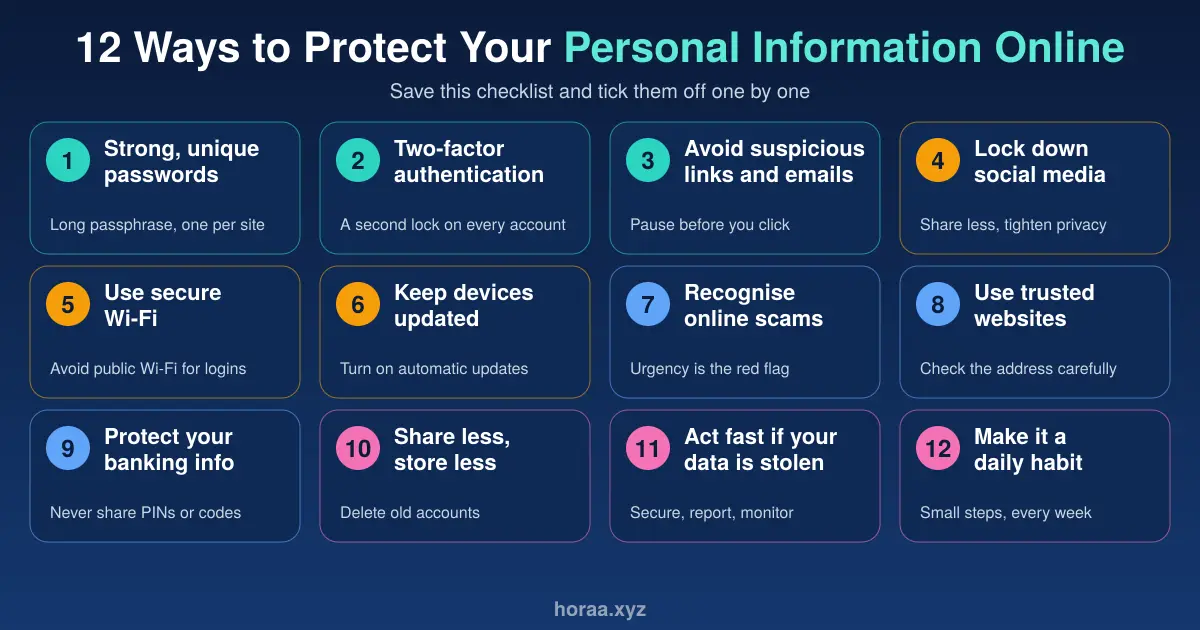
Online safety isn’t something you set up once and forget. It’s a handful of small habits: strong unique passwords, 2FA, careful clicking, regular updates and a healthy dose of doubt when something feels off.
You don’t have to do everything today. If you want a simple starting point, do these three things this week:
- Install a password manager and secure your email account.
- Turn on two-factor authentication for your most important accounts.
- Switch on automatic updates on every device.
Then add one more tip each week. Within a month, you’ll be far safer than most internet users, and you’ll have spent less time on it than you spend scrolling in a single evening.
Quick Security Checklist
Save or print this and tick things off as you go:
- Password manager installed and master passphrase set
- Unique passwords on email, banking and social accounts
- Two-factor authentication on all important accounts
- Automatic updates on for devices and apps
- Home router secured with a strong password
- Social media privacy settings reviewed
- Bank transaction alerts enabled
- Old and unused accounts deleted
- Regular backups in place
Frequently Asked Questions
Is a password manager safe to use?
Reputable password managers encrypt your stored passwords, so only you can open them with your master passphrase. For most people, that’s far safer than reusing simple passwords or keeping them in a notes app. Choose a well-established provider and protect it with 2FA.
Is public Wi-Fi ever safe?
It’s riskier than a private network. If you have to use it, avoid sensitive logins, use mobile data where possible and consider a trusted VPN.
Does the padlock icon mean a website is safe?
No. It only means the connection is encrypted. It doesn’t prove the owner is trustworthy, because scam sites can have a padlock too. Always check the address and the site’s reputation.
How often should I change my passwords?
Current guidance generally favours strong, unique passwords that you change when there’s a reason, such as a breach or suspected compromise, rather than on a fixed schedule.
What should I do first if I clicked a phishing link?
Close the page without entering anything. If you already typed a password, change it immediately, turn on 2FA, contact your bank if payment details were involved and scan your device for malware.
What’s the single most important step for beginners?
Secure your main email account with a strong, unique password and two-factor authentication. Almost every other account can be reset through it.
Found this useful? Share it with someone who’s always clicking “Accept” on everything, and subscribe to Horaa for more simple, practical tech guides.