Imagine telling your computer, “clean up my Downloads folder,” and then watching it happen while you make coffee. A year ago that sounded like a demo. Now it’s a product.
What is Gemini AI, and why does the Mac app matter?
Gemini is Google’s AI assistant, built on its own family of AI models. If you’ve used it on your phone or in a browser, you know the basic idea: ask a question, get an answer.
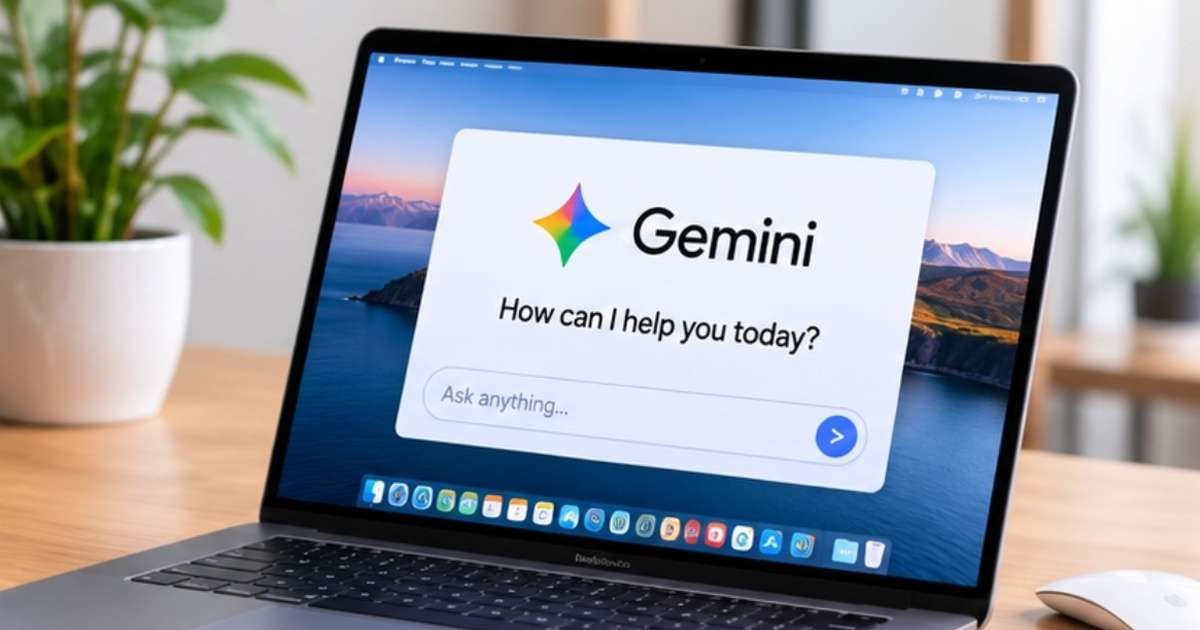
The Mac app came earlier this year. Google released a native Gemini app for macOS 15 and up in April 2026, free for all Gemini users worldwide (TechCrunch). You open it with Option + Space and can share anything on your screen, including local files.
That was useful, but it was still a conversation. The new feature changes the relationship. The assistant stops being a helpful voice and becomes something closer to a helpful pair of hands.
How Gemini controls a Mac
Think of it as a very fast intern working at your keyboard.
You describe what you want in everyday language. Gemini works out the steps, looks at your screen, and operates your apps the way you would. According to Bloomberg’s report, this includes clicking, typing, navigating menus and filling out forms. Earlier code analysis by 9to5Google suggested the system would lean on Screen Access and Accessibility features to see your display and control the mouse and keyboard.
It also doesn’t have to hog your attention. Macworld reports that Google describes the automation as something that can run in the background while you get on with other work.
Google didn’t invent this idea overnight. The company made its Gemini 2.5 Computer Use model available to developers back in October 2025. The Mac feature is that research arriving in a consumer app.

What can it actually do?
Google’s own examples matter more than my guesses, so read the official announcement for the current list. Based on how this kind of tool works, realistic uses include:
- Sorting files. Grouping a messy folder by project, or renaming files so they follow one pattern.
- Handling documents. Pulling key details from several files into a single summary.
- Browsing. Researching a topic, comparing options, or filling out an online form.
- Moving data between apps. Copying details from an email into a spreadsheet, for example.
- Repeating chores. Weekly reports and trackers are ideal, because the steps never change.
A good rule of thumb: if you could explain the task to a new coworker in two minutes, an AI agent can probably attempt it.
How AI computer automation works
There are four pieces, and none of them is magic.
- Natural language. You type or speak a goal. No code, no special syntax.
- Reasoning. The model breaks the goal into steps and decides what to do first.
- Screen reading. It looks at what’s on your display and identifies buttons, menus and text fields.
- Action. It clicks and types, checks the result, then moves on or corrects itself.
The loop of look, decide, act and check is what separates this from old-school macros, which break the moment a button moves. An AI agent can adapt, at least some of the time.
Who benefits most?
Everyday users get the obvious wins: time saved, less drudgery, and a computer that’s easier to use. If you’ve never written a script in your life, you can still automate something by describing it. That’s a big deal for people who find software intimidating.
Businesses have a longer list. Office staff can hand off scheduling and file handling. Admin teams can speed up data entry. Support teams can pull account details together faster, and researchers can gather and organize sources more easily. Small savings across a whole team add up quickly.
Control is part of the story for companies, too. Google says its Mac app falls under the Generative AI settings in the Workspace Admin console, so IT admins can manage whether it’s available.
The privacy and security question
I’d rather be blunt here: handing an AI the keys to your computer deserves more thought than most people will give it.
- Your files. To organize them, the AI has to see them. Be clear about which folders you’re allowing.
- Your screen. Screens show passwords, bank details, private messages and client data. Anything visible may be processed by the service, so read Google’s privacy terms before you point it at sensitive work.
- Honest mistakes. An agent that clicks can click the wrong thing. Deleting, sending or buying by accident is a real risk, and some of those can’t be undone.
- Too much access. The safest habit is to give the least access that still gets the job done. Keep backups. Don’t leave an agent running unwatched near anything you can’t afford to lose.
Look for permission prompts, the ability to stop a task instantly, and clear activity logs. If a tool doesn’t offer them, think twice.

Where it falls short
Computer-use AI is impressive, but it’s early.
It can misread vague instructions. It can misjudge what’s on screen, especially after an app updates. Apps with unusual interfaces may not work well, and long multi-step jobs still need a human watching. Think of it as a capable assistant who needs supervision, not an employee you can ignore.
Availability is limited too. Bloomberg reports that computer use is available now in the US for Mac Gemini app users on Google AI Plus, Pro or Ultra plans. Macworld’s coverage, by contrast, described the arrival as coming “soon.” If you’re outside the US or on a free plan, check Google’s page at gemini.google/mac for the current status.
Gemini vs ChatGPT, Copilot and Claude
Every major company is chasing the same goal, an assistant that does the work, but each starts from a different place.
- Gemini is tied closely to Google’s world: Gmail, Calendar and the wider Google ecosystem.
- ChatGPT from OpenAI is a general-purpose assistant. TechRadar has noted that OpenAI is rumored to be working on a “superapp,” but nothing is confirmed.
- Microsoft Copilot is built around Windows and Microsoft 365, which suits people who already live in those tools.
- Claude from Anthropic has Claude Cowork, an agentic desktop tool. Coverage of Gemini’s launch frequently compares the two.
I won’t pick a winner. Features, pricing and availability shift constantly, so test the tools on your own tasks. Transparency note: this article was drafted with help from Claude, which is made by Anthropic, so please verify the comparisons yourself.
What this means for the future
Will AI replace the way we use computers? Not entirely, and not soon. Keyboards and apps aren’t going anywhere. But a layer of “just tell it what you want” is clearly forming on top of them.
Work may shift from operating software to describing goals and checking results. Clear communication and good judgment could become more valuable than knowing every menu. Google itself has described the Mac app as a foundation for a personal, proactive and powerful desktop assistant (Engadget), which tells you the ambition.
Opportunities will follow: better accessibility, new tools built on automation, and new jobs overseeing AI workflows. So will new demands for security and accountability.
The bottom line
Gemini Mac computer use is a real step toward AI that acts instead of just answering. The upside is easy to see: less busywork and a friendlier computer. The risks are just as clear, from privacy exposure to plain old mistakes.
My advice is to start small. Try it on non-sensitive files, watch what it does, and expand your trust slowly. And whichever AI you use, the companies building it should earn that trust with clear permissions, transparent data practices and real user control.
FAQ
Can Gemini really control my Mac?
Google has announced computer use for the Gemini Mac app, and Bloomberg reports it’s available now to some US subscribers. Check Google’s blog for current details.
Is Gemini computer use free?
The Mac app itself is free, but reports say computer use requires a Google AI Plus, Pro or Ultra plan.
Is it safe?
It carries real risks, including exposure of personal files and accidental actions. Use minimal permissions, avoid sensitive data at first and keep backups.
Which Macs are supported?
The Gemini Mac app requires macOS 15 or later. Confirm any extra requirements for computer use with Google.