Free airport Wi-Fi is convenient, but before you tap “connect,” it helps to know how to protect personal information on public WiFi. You’re at the gate, your phone is at 12%, and a free network is right there. Whether that one-second tap is a good idea depends on a few things most people never check.
Is Public Wi-Fi Safe?
Ten years ago, someone on the same café network could often read what you sent to many websites. Today most sites use HTTPS, which scrambles the data between your browser and the site. A stranger watching the network usually sees gibberish instead of your password.
That’s the good news. The catch is that the danger has moved. Attackers now rely less on spying and more on tricking you, with fake hotspots, copied login pages and careless device settings.
Official advice still leans toward caution. The FTC says a hotspot that needs no password isn’t secure, and CISA recommends avoiding banking, shopping and other sensitive tasks on public networks.
Why Is Public Wi-Fi Dangerous?
Public networks are shared by strangers, and you rarely know who runs them. The router in a hotel or café could be well managed, badly set up, or run by someone with bad intentions. You can’t tell by looking. Here’s what attackers can do:
- Create an “evil twin.” This is a fake hotspot with a name close to the real one, like “Airport_Free_WiFi” beside the genuine “Airport WiFi.” Proton VPN has a good explainer on evil twin attacks.
- Show a fake login page. Many public networks ask you to sign in or accept terms. Attackers copy that screen and ask for your email, password or card details.
- Watch unencrypted traffic. A small share of websites and older apps still lack HTTPS.
- Target weak devices. Phones and laptops with file sharing on, outdated software or auto-connect enabled are easier targets.
The tricky part is that phones are bad at warning you about fake networks. You tap a convincing name once, and the attacker does the rest.
What Information Can Hackers Steal?
- Email addresses and passwords
- Messages and browsing activity
- Card and banking details typed into fraudulent pages
- Session cookies, small tokens that keep you logged in
- Personal details entered on fake sign-in forms
When you log in to a site, it hands your browser a token saying “this person is already verified.” If someone steals that token, they may be able to act as you without knowing your password. That’s why logging out and using two-factor authentication matter.
HTTPS also can’t save you from a fake page. If you type your password into a convincing copy, the encryption just delivers it safely to the attacker.
How to Protect Personal Information on Public WiFi: 15 Tips
- Verify the network name. Ask staff for the exact name before connecting. Fake networks copy familiar names with small tweaks like an extra word or an underscore.
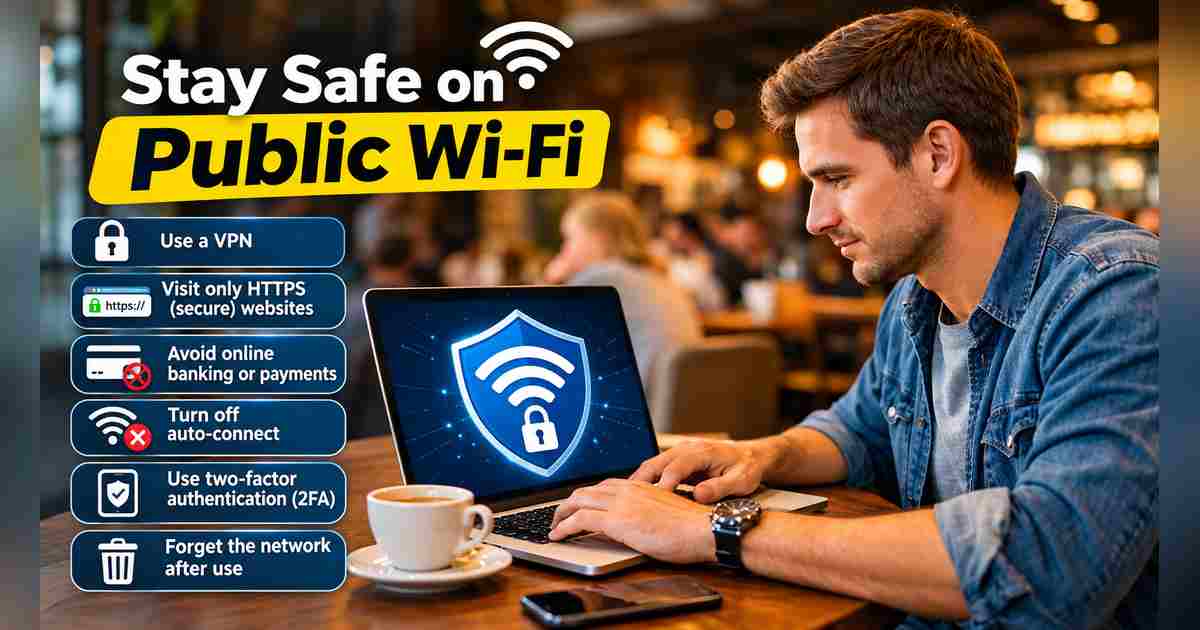
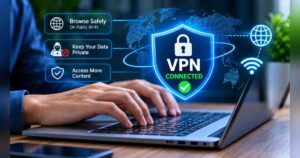
- Use a trusted VPN. A VPN encrypts traffic between your device and the VPN server, hiding it from the Wi-Fi operator and anyone nearby. New to VPNs? Read our VPN beginner’s guide.
- Skip banking and shopping. If you need to pay a bill, switch to mobile data. It takes seconds.
- Use your own hotspot. A personal hotspot with a strong password is far safer than a network run by a stranger.
- Stick to HTTPS sites. Look for
https://in the address bar, and never click through browser security warnings. They can mean someone is interfering with your connection. - Turn on two-factor authentication. Even if your password is stolen, the attacker still can’t open your account. Our 2FA setup guide walks you through it.
- Disable auto-connect. An attacker can broadcast a name you’ve used before, and your phone may connect silently.
- Forget public networks after use. This stops your device reconnecting to a look-alike later.
- Turn off file sharing. Disable file and printer sharing, and set AirDrop to “Contacts Only” or “Receiving Off” when you’re out.
- Keep everything updated. Updates close the holes attackers rely on. Update at home, not on the hotel network.
- Use strong, unique passwords. If one leaked password works everywhere, one leak becomes ten.
- Distrust odd pop-ups. A real Wi-Fi sign-in rarely needs more than an email or a tap on “Accept.” If a page asks for card details, disconnect.
- Turn off Bluetooth when unused. It’s one less way for nearby devices to reach yours.
- Enable your firewall. It blocks unsolicited incoming connections. Windows and macOS include one, but check it’s on.
- Log out when you’re done. Ending the session limits what a stolen token can do, especially for email, banking and work accounts.
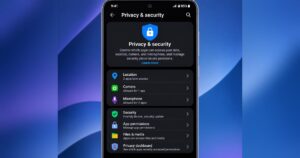
How to Protect Your Android Phone
Menu names vary by brand and Android version, but the steps are the same.
- Turn off automatic connection for networks you don’t fully trust, and delete public networks from your saved list.
- Keep Android and your apps updated, including Google Play system updates.
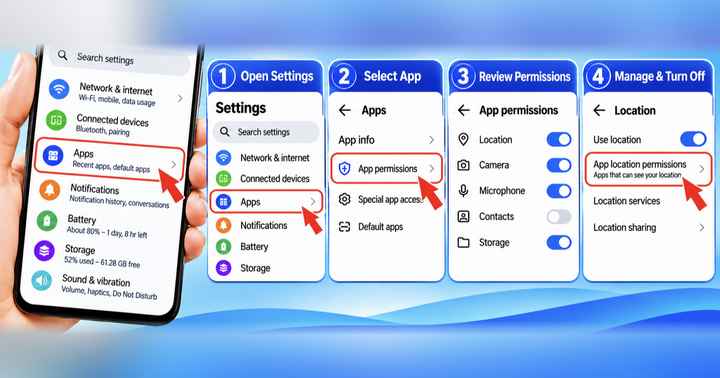
- Review app permissions and remove anything an app doesn’t need.
- Never install apps from links or pop-ups that appear after you join public Wi-Fi.
How to Protect Your iPhone
- Go to Settings > Wi-Fi, tap the info button next to a network and switch off Auto-Join for networks you don’t control.
- Keep Private Wi-Fi Address on. Apple uses a different address for each network, which reduces tracking. On networks with weak or no security, the address rotates every two weeks.
- Turn on two-factor authentication for your Apple Account and install the latest iOS updates.
- Check the network name before entering any Wi-Fi password.
How to Protect Your Windows Laptop
- Set the connection profile to Public so network discovery is off by default.
- Turn on Windows Firewall.
- Disable network discovery and file and printer sharing.
- Install security updates before you travel.
- Use a VPN and remove saved public networks when you leave.
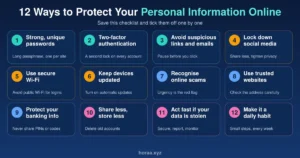
What You Should Never Do on Public Wi-Fi
- Trust a network just because the name looks familiar.
- Enter passwords or card details on a login page you didn’t expect.
- Ignore browser security warnings.
- Download software or accept updates offered through a Wi-Fi sign-in page.
- Leave your device unattended.
What to Do If You’ve Already Used Unsafe Wi-Fi
Don’t panic. Acting quickly limits the damage.
- Disconnect and forget the network.
- Change affected passwords from a trusted connection like mobile data or home Wi-Fi. Start with your email, since it can reset your other accounts.
- Turn on or review two-factor authentication.
- Sign out of all other active sessions in your account settings. This kills any stolen session token.
- Check bank and card statements if you entered financial details, and call your bank if anything looks off.
- Run a security scan if you suspect malware.
If you think an account was compromised, our guide on what to do after a hacked account covers the next steps.
Is a VPN Enough?
No. A VPN hides your activity from the Wi-Fi operator and other people on the network, which is useful if you travel or work from cafés often. But it can’t stop phishing, malicious downloads, fake websites or accounts that are already compromised. It also shifts trust to the VPN company, so choose one with a clear no-logs policy.
Think of a VPN as one layer of protection, not the whole defense.
Frequently Asked Questions
Is public Wi-Fi safe for browsing?
Casual browsing is usually fine because most sites use HTTPS. The risk rises with banking, work email and anything tied to your identity.
Can hackers steal passwords through public Wi-Fi?
It’s harder than it used to be. Today attackers mostly rely on fake networks and fake login pages that trick you into typing your credentials.
Is public Wi-Fi safe with a VPN?
A reputable VPN improves your privacy on the network, but it won’t protect you from phishing or other scams.
Is hotel Wi-Fi safe?
Not automatically. Ask the front desk for the official network name, avoid unexpected login pages, and use a VPN or your hotspot for sensitive tasks.
Should I use mobile data instead of public Wi-Fi?
For sensitive tasks, yes. Mobile data or your own hotspot is generally the better choice over an unfamiliar public network.
Quick Checklist Before You Connect
- Confirmed the exact network name with staff
- Auto-join off, file sharing off
- Device updated and firewall on
- VPN on, or mobile data ready for sensitive tasks
- Two-factor authentication enabled on important accounts
Final Thoughts
Public Wi-Fi is convenient, and a few minutes of preparation make it manageable. Verify the network name, keep sensitive tasks for mobile data, turn on 2FA, keep your devices updated, and use a VPN when it matters.