Windows 11 KB5132265 is an optional preview update that Microsoft released on November 19, 2026. It’s packed with small but useful changes: dark mode finally reaches the Folder Options window, the right-click menu in File Explorer becomes customizable, and there’s a brand-new recovery tool called Cloud rebuild.
There’s a catch, though, and it’s the first thing you should know. This update is only for Windows 11 version 26H1. If your PC runs 25H2 or 26H2, you won’t see it. Below, I’ll walk you through what’s new, who can install it, and whether it’s worth your time.
What is the Windows 11 KB5132265 update?
KB5132265 is a cumulative, non-security preview update for Windows 11 version 26H1, all editions. Microsoft’s own update page lists it as the November 19, 2026 preview (OS Build 28000.3620).
Windows Insiders actually saw these changes a few days earlier. On November 13, the Release Preview channel received build 28000.3612. The November 19 release is the optional version for everyone on 26H1.
Most of the new features arrive through a gradual rollout. That means you can install the update and still not see every feature right away. Microsoft turns them on in waves.
One more thing worth knowing: Microsoft has said there won’t be a second preview update in December because of the holidays. So these changes should roll into the regular December 2026 security update.
Who can actually install KB5132265?
This is where most articles get fuzzy, so let’s be clear.
Windows 11 26H1 isn’t a normal feature update. Microsoft describes it as a hardware-specific release for select new devices, and it isn’t offered as an upgrade to PCs already running 24H2, 25H2 or 26H2. News sites covering Microsoft’s release health page link it to new Arm64 PCs, starting with Snapdragon X2 devices.
- You’re on 26H1: KB5132265 is for you. Jump to the install steps.
- You’re on 25H2 or 26H2: You won’t see this update. According to Windows news sites, the same File Explorer and accessibility improvements reached your version in the November Patch Tuesday update, KB5132061, also through a gradual rollout.
Not sure which version you have? Press Windows + R, type winver, and hit Enter. The window will tell you.
Folder Options finally gets dark mode
If you use dark mode, you’ve probably winced at this one before. You’d open File Explorer, everything looked sleek and dark, and then you’d click Folder Options and get blinded by a bright white window.
KB5132265 fixes that. The Folder Options dialog now supports dark mode, so it matches the rest of Windows 11. It’s a small thing, but it makes the system feel more finished, especially if you spend a lot of time in File Explorer.
A right-click menu you can actually customize
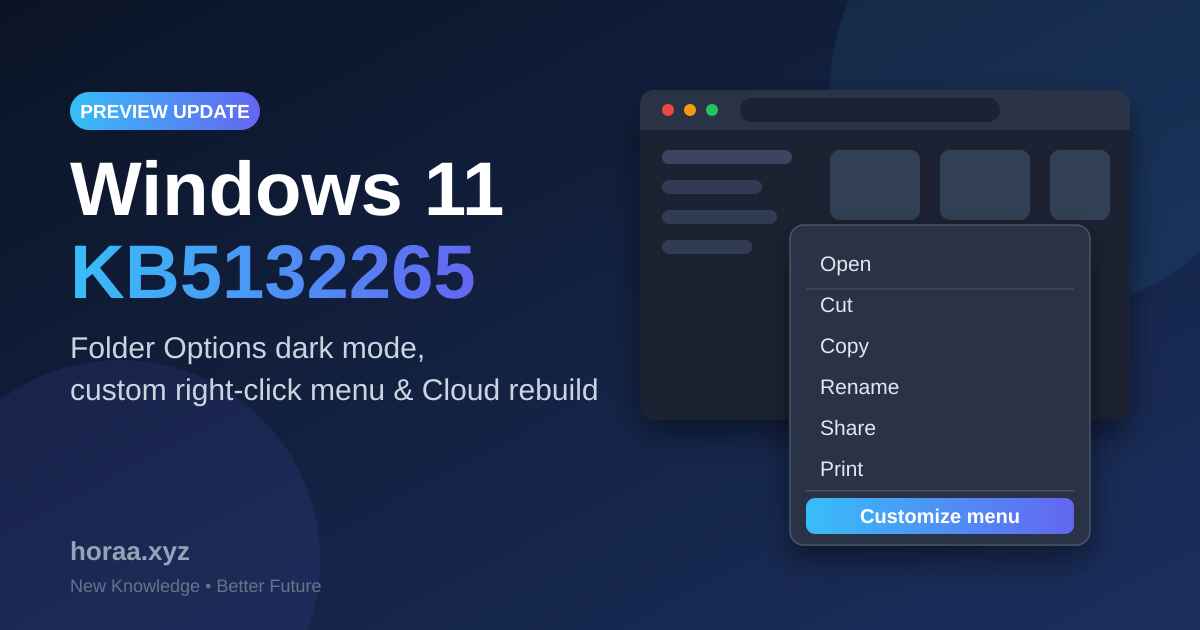
This is the biggest practical change in the update. Microsoft redesigned the File Explorer context menu to open faster and look less cluttered. At the bottom you’ll find a new Customize menu button, which opens a Settings page where you can:
- Turn built-in commands, like Send to and Create shortcut, on or off.
- Add commands such as Print.
- Choose which app extensions show up in the main menu or in a submenu, or hide the submenu entirely.
- Show Cut, Copy, Paste, Rename, Delete and Share as text commands instead of a row of small icons.
- Move Properties to the bottom of the menu.
You don’t have to change anything. The default layout works fine. And if you ever need the extra options, hold Shift while you right-click the desktop.
Easier File Explorer search and a handy shortcut
Ever searched for “Monthly Report” and found five files with nearly the same name? The search results page in File Explorer now shows each file’s name, location and date in a consistent layout. You can tell which one you want at a glance, without opening them all.
The address bar also learns a new trick. It now understands the tilde (~), so typing something like ~\AppData takes you straight to that folder inside your user profile.
Tidier privacy settings
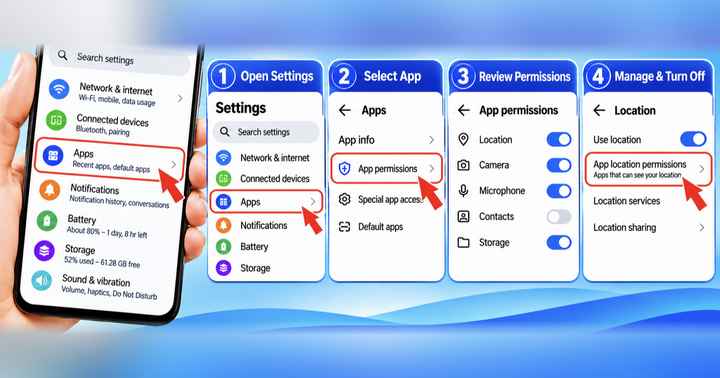
The Privacy & security page in Settings now groups the Camera, Microphone and Location controls together. It also pulls usage information from the linked pages onto the main page, so you can see which apps have been using these features without clicking around.
It’s a good excuse to review your app permissions. Most apps don’t need everything they ask for. If you want to go deeper on staying safe online, browse our Cybersecurity & privacy section.
The Device Info card on the Settings home page is also expanding to more markets. If you’re signed in with a Microsoft account, it shows your PC’s key specs, with more detail under Settings > System > About.
Accessibility upgrades worth noticing
Magnifier gets three new tools
- Contrast theme toggle: Reduces glare while keeping the original colors in photos, videos and charts. It uses a dark theme by default and sits on the Magnifier toolbar.
- Per-monitor zoom: Each display can have its own zoom level. It’s on by default and needs your displays set to Extend.
- Viewport locking: Keep the magnified view fixed on one screen while you work on another. Point to a display and press Ctrl + Windows key + K to lock it. Press Windows key + Esc to release all locked displays.
Live Captions
There’s a new Include screen reader audio setting, and it’s off by default. That means captions no longer try to transcribe Narrator, JAWS or NVDA, which keeps them focused on your microphone and system audio. You’ll find it under Settings > Accessibility > Captions.
Narrator reads math
Narrator can now read and navigate math equations in supported Microsoft 365 apps like Word and PowerPoint, and in supported web content in recent versions of Edge and Chrome. Press Narrator key + Alt + N to turn on math navigation. Supported languages include English (US and UK), Traditional Chinese, Finnish, German and Spanish.
Cloud rebuild: reinstall Windows without a USB drive
Cloud rebuild is a new recovery option that reinstalls Windows 11 using an image and drivers downloaded straight from Windows Update. It can even work when Windows won’t start, and you don’t need USB media.
- You can choose to remove your files, or securely erase the drive before reinstalling. Erasing is irreversible.
- IT admins can start a rebuild remotely.
- To try it, go to Settings > System > Recovery and select Rebuild PC.
The recovery environment can also reuse Wi-Fi networks already saved in Windows, so a rebuild can get online without extra setup.
Other changes in the update
- Xbox mode: The Gaming Task View has a refreshed navigation bar with quick access to Exit to Desktop and Power Options.
- Task Manager: The Memory page on the Performance tab now accounts for all your installed memory, and the numbers add up to that total.
- Phone Link: Hover over a recent message or notification in the Start menu to preview it without opening it.
- Battery: The adaptive hibernate policy hibernates less above 80% battery and sooner below 10%.
- Security and networking: Memory integrity protection expands to more eligible devices, and Windows adds IPv6 CLAT support for Wi-Fi and Ethernet.
- Language support: Text shaping for Unicode 17.0.
How to install KB5132265
Because this is an optional preview update, Windows won’t install it on its own. If your PC runs 26H1, here’s how to get it:
- Open Settings and select Windows Update.
- Choose Advanced options, then Optional updates.
- If KB5132265 is listed, select it and click Install.
Stick to Windows Update. Don’t download update files from random websites. And before installing any preview update, make a restore point or back up your important files.
For more guides like this, check our Computer & software section.
Is KB5132265 worth installing?
If you’re on a 26H1 device, yes, for most people it’s a safe, helpful update. The customizable right-click menu, clearer search results and new accessibility tools are real quality-of-life gains.
That said, it’s a preview, not a security update. If you prefer to play it safe, you can simply wait. These same changes are expected in the December 2026 security update (reports point to December 8).
Looking for honest takes on tech and software? Our Technology review section has more.
Frequently asked questions
What is KB5132265?
It’s an optional preview update for Windows 11 version 26H1, released on November 19, 2026. It adds Folder Options dark mode, a customizable File Explorer right-click menu, Cloud rebuild and several accessibility improvements.
Is KB5132265 a security update?
No. It’s a non-security preview update. It contains improvements that are expected to be included in the December 2026 security update.
Can I install KB5132265 on Windows 11 25H2 or 26H2?
No. This update is only for Windows 11 version 26H1. Windows news sites report that similar features reached 25H2 and 26H2 through the November Patch Tuesday update, KB5132061.
Why don’t I see the new right-click menu after installing?
Microsoft is rolling out many of these features gradually. Even after installing the update, a feature might take a while to appear on your PC.
How do I check my Windows 11 version?
Press Windows + R, type winver and press Enter. The window shows your version number.
Sources
- Microsoft Support: November 19, 2026, KB5132265 (OS Build 28000.3620) Preview
- Microsoft Learn: Windows Insider Release Preview notes, build 28000.3612
- Microsoft Support: KB5132061 (Windows 11 25H2 and 26H2)
- Pureinfotech: KB5132061 November 2026 update coverage
Questions about this update or a Windows issue you’re stuck on? Contact us. You can also read how we handle your data in our Privacy Policy.