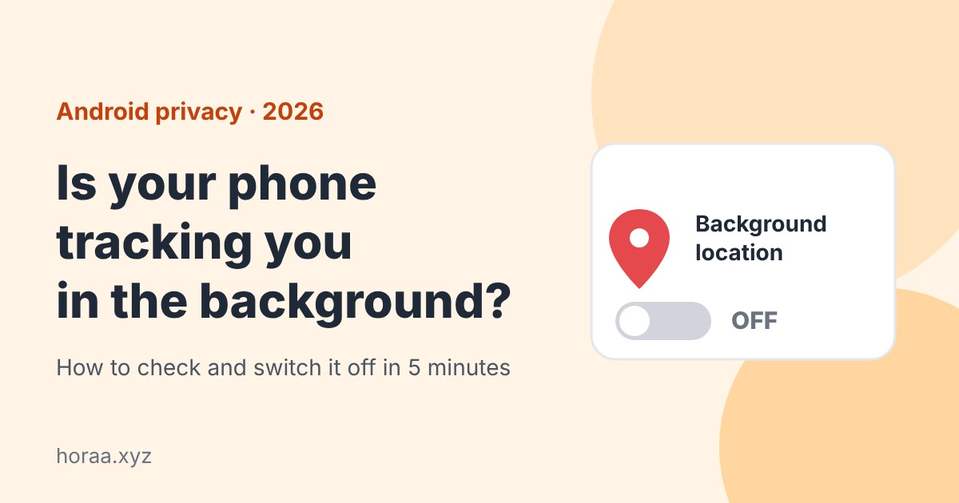
Here’s something most of us never think about: a lot of the Android apps on your phone can see where you are even when you haven’t opened them in days. Sometimes that’s useful. Often it isn’t. The good news is that you can fix it in about five minutes, without breaking the apps you actually rely on.
What background location really means
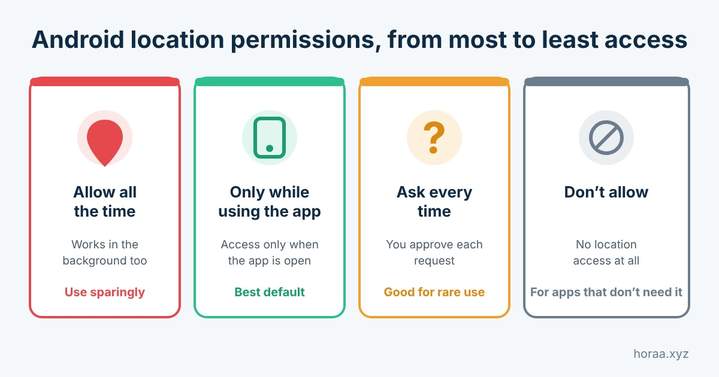
Background location tracking simply means an app receives your phone’s location while it’s closed or off-screen. Whether it can do that depends on the permission you gave it. Android gives you four choices:
- Allow all the time: the app can use your location whenever it likes, including in the background.
- Allow only while using the app: access works only while the app is open.
- Ask every time: the app has to check with you on each use.
- Don’t allow: no location, full stop.
Google’s own help page describes exactly these options in its guide to managing location permissions for apps. As a rule of thumb, a flashlight or calculator app has no good reason to know where you are.
Why apps want your location
Not every request is shady, but not every one is necessary either. The usual reasons are:
- The app can’t work without it. Navigation, ride-hailing, food delivery and weather are the obvious ones.
- Background features. Live location sharing and safety alerts genuinely need ongoing access.
- Nearby suggestions. Shopping and travel apps like to show what’s around you.
- Analytics. Developers sometimes use location to see how people use their app.
- Advertising. Ad services may use your approximate location to target ads.
The simple test: does this feature need my location, and does it need it when I’m not even looking at the app? If the answer is no, restrict it.
Step 1: See which apps can track you
Menu names shift a little between phone brands, but the path is almost always the same:
- Open Settings.
- Tap Location.
- Tap App location permissions (some phones call it App permissions).
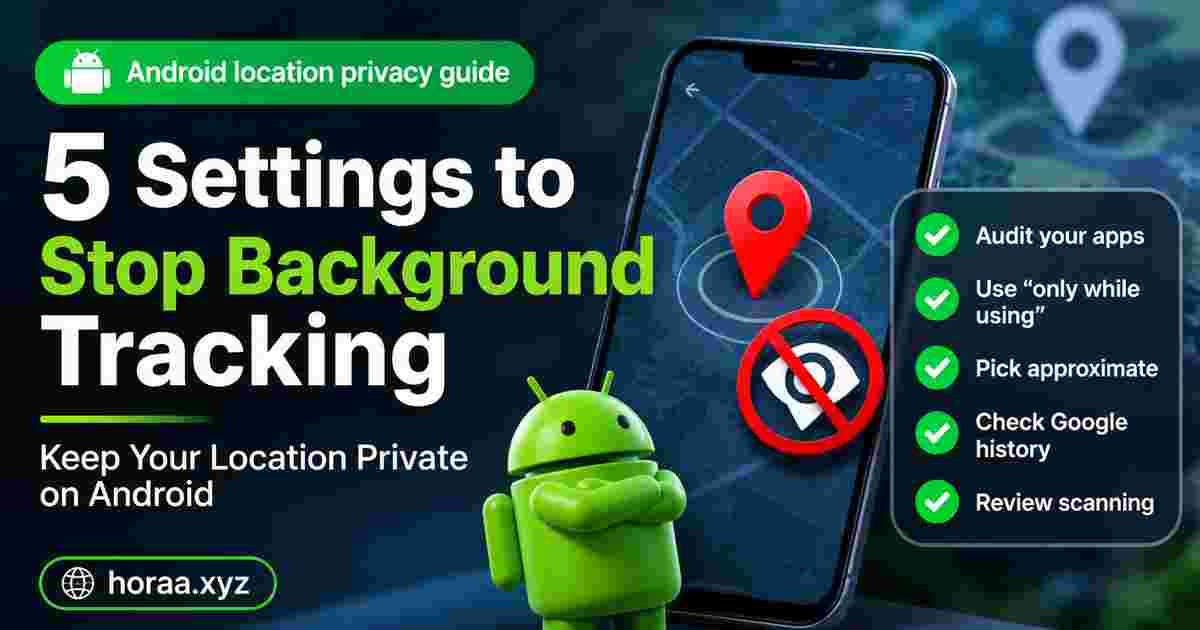
- Look at the apps listed under Allowed all the time.
That first group is your shortlist. Ask yourself why each one needs constant access. On Android 12 and newer, the Privacy Dashboard in Settings also shows which apps looked at your location recently, which is a great reality check.
You can also learn how apps say they handle your data in Google’s guide on finding out if Android apps share your location data.
Step 2: Restrict background access
This is the step that makes the biggest difference, and you don’t have to turn location off for the whole phone.
- Go to Settings > Location > App location permissions.
- Tap an app from your shortlist.
- Choose Allow only while using the app or Ask every time.
- If it doesn’t need location at all, choose Don’t allow.
If a feature stops working afterwards, you can switch that one app back. Nothing is permanent.
Step 3: Switch to approximate location
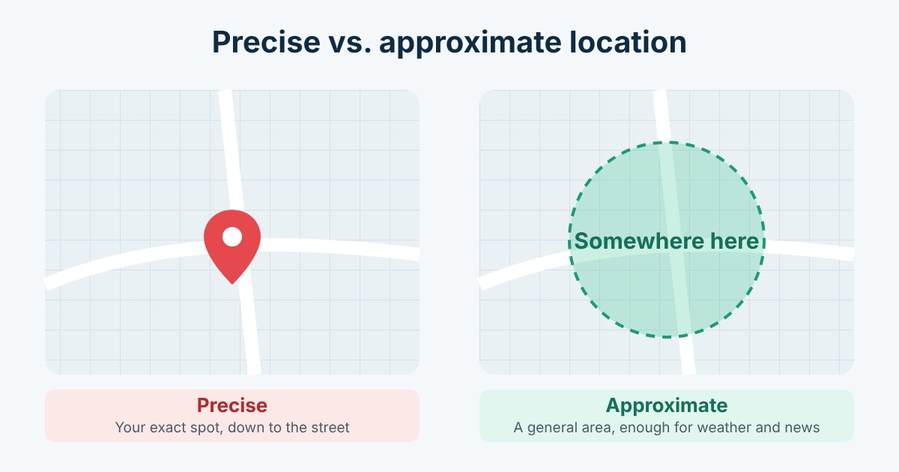
On Android 12 and up, you can decide whether an app gets your precise spot or just your approximate area. A weather app only needs to know your town, not your street.
- Open Settings > Location > App location permissions.
- Tap the app.
- Turn off Use precise location.
One thing to keep straight: this changes how accurate the location is, not whether the app can get it in the background. Use it together with Step 2.
Step 4: Check Google’s location history
App permissions are only half the story. Your Google account can keep location data too. Google says Timeline is off by default, and when it’s on, your location is saved to your device. It’s worth a quick look to be sure it matches what you want.
- Open Google Maps and tap your profile picture.
- Choose Your Timeline and open its settings.
- Turn Timeline off if you don’t want your visits and routes saved.
- Delete any saved data you’d rather not keep.
Then visit your Google Account, open Data & privacy, and check Web & App Activity. Turning off Timeline doesn’t automatically clear everything else, so it’s worth checking both. For the full picture of what each setting does, see Google’s page on managing your Android device’s location settings.
Step 5: Look at Wi-Fi and Bluetooth scanning
Switching off GPS doesn’t make your phone clueless. Android can also work out roughly where you are using nearby Wi-Fi networks, Bluetooth devices, mobile networks and built-in sensors.
To review it, open Settings > Location > Location Services and look for Wi-Fi scanning and Bluetooth scanning. Turning them off can make location less precise and may affect nearby-device features, so only do it if privacy matters more to you than accuracy. Either way, it doesn’t guarantee your phone can’t be located some other way.
Using a Samsung phone?
Samsung’s One UI uses slightly different wording, but the idea is identical.
- Open Settings > Location > App permissions.
- Tap an app and choose Allow only while using the app or Don’t allow.
- Turn off Use precise location when exact position isn’t needed.
Can’t find it? Use the search bar at the top of Settings and type “location permissions.”
Mistakes people make
- Tapping “Allow” on everything. Pause and ask if the feature really needs it.
- Forgetting about precise location. Exact position is rarely necessary.
- Installing apps from unknown sources. They’re more likely to over-ask for permissions.
- Thinking GPS off means untraceable. Websites can still estimate your area from your IP address.
- Setting it once and forgetting it. A quick review every few months, and after installing new apps, keeps things tidy.
What might stop working
Restricting background access is generally safe, but a few things can change:
| App type | What may change |
|---|---|
| Navigation | Background turn-by-turn features may be affected |
| Weather | Automatic local updates may be less accurate |
| Food delivery | Live location updates may be limited |
| Ride-hailing | Location sharing during a trip may be affected |
| Social media | Location-based features may be limited |
| Fitness | Background route recording may stop |
If something breaks, give that single app its access back. You don’t need to disable every permission.
Frequently asked questions
Can apps still find me when GPS is off?
When your device’s location setting is off, apps and services can’t get your device’s location. Websites can still guess your general area from your IP address, so it isn’t the same as being anonymous.
How do I see which apps use my location?
Open Settings, tap Location, then App location permissions. Apps are grouped by how much access they have. On Android 12 and newer, the Privacy Dashboard also shows recent access.
Does uninstalling an app delete the location data it collected?
No. Uninstalling stops the app from reading your location from then on, but it doesn’t necessarily erase data the developer already collected. Check the developer’s privacy policy for deletion options.
Should I turn location off completely?
Usually not. Maps, emergency services and Find Hub rely on it. Managing permissions app by app gives you privacy without breaking useful features.
Is approximate location really more private?
Yes. It shares a general area instead of your exact position, which is plenty for weather, news and most shopping apps.
The short version
Your location says where you live, work and spend your time, so it’s worth a few minutes of attention. Check which apps can see it all the time, move most of them to “only while using,” switch to approximate location where you can, and glance at your Google history settings. You don’t have to give up the apps you like. Just give each one only what it needs.
Want more privacy tips like this? Browse the rest of our guides on Horaa, or see our related articles on Android privacy settings, app permissions explained and a Google account privacy checkup.