Which apps access your location on Android, your phone knows where you are, and so do a lot of the apps on it. That’s fine when you’re using maps to find a shop. It’s less fine when a flashlight app has quietly been allowed to see your location for months. Most of us tap “Allow” once, move on, and never look again.
Quick answer
- See who has permission: Settings → Location → App location permissions.
- See who used it recently: Settings → Privacy (or Security & privacy) → Privacy dashboard → Location. You need Android 12 or newer.
- Stop an app: tap it in either list and choose Don’t allow.
Menu names change between Android versions and phone brands. If you get lost, type “location” into the search bar at the top of Settings.
Which apps access your location on Android guide step by step
- See which apps have location permission
- Check which apps used your location recently
- What each permission option means
- Change or remove an app’s permission
- Share approximate location instead of precise
- Other location controls worth knowing
- Which apps really need your location?
- Common mistakes to avoid
- Frequently asked questions
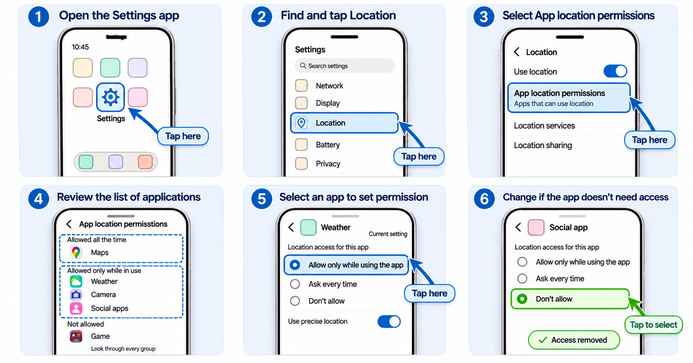
1. See which apps have location permission
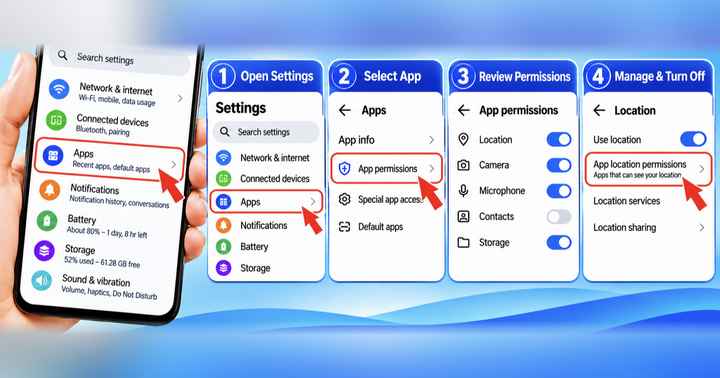
Start with the simplest question: which apps are allowed to use your location? Google lists these steps for Android 11 and newer.
- Open Settings.
- Tap Location.
- Tap App location permissions.
- Scroll through the groups: Allowed all the time, Allowed only while in use, Ask every time and Not allowed.
- Tap any app to see or change its setting.
Another route is Settings → Security & privacy → Privacy controls → Permission manager → Location. The wording differs by phone, so don’t worry if yours looks slightly different.
On a Samsung phone: go to Settings → Location → App permissions. The groups are similar, though the labels can vary by One UI version.
2. Check which apps used your location recently
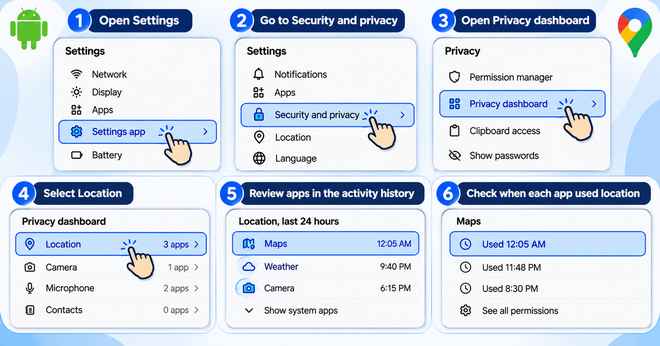
Permissions tell you what an app can do. The Privacy dashboard tells you what it did. It arrived with Android 12, so older phones won’t have it.
- Open Settings.
- Tap Privacy or Security & privacy. On some phones you’ll need to tap Privacy (or Privacy controls) a second time.
- Tap Privacy dashboard.
- Tap Location.
- Look through the timeline, then tap any app to change what it’s allowed to do.
How far back you can look depends on your version. According to Google, Android 12 shows the last 24 hours, and Android 13 and newer show the last 7 days.
On a Samsung phone: look for Settings → Security and privacy → Privacy → Permission usage. Samsung uses its own names, and the history may be shorter than on a Pixel.
One thing to keep in mind: seeing an app in the timeline isn’t proof that something shady is going on. Maps, weather and ride apps are supposed to show up. What you’re hunting for is an app that has no obvious reason to care where you are.
3. What each permission option actually means
Before you start changing things, here’s what each choice does. These are the options Google lists on an app’s location page.
| Option | What it means | Good for |
|---|---|---|
| Allow all the time | The app can use your location at any time, including in the background. | Apps built around background tracking, like family location sharing. |
| Allow only while using the app | The app can use your location only while you’re using it. | Maps, ride, delivery and weather apps. |
| Ask every time | The app asks whenever you open it, and your answer lasts until you close the app. | Apps you only use now and then. |
| Don’t allow | The app can’t use your location, even while you’re using it. | Anything that has no real need for it. |
When an app first asks, the pop-up may also offer Only this time. That gives access for a single session, then it asks again. On Android 11 and newer, an app can’t offer “Allow all the time” in that pop-up. You have to grant it yourself in Settings, which is a handy safeguard.
My simple rule: for most apps, Allow only while using the app is plenty. If you can’t think of why an app needs your location, pick Don’t allow.
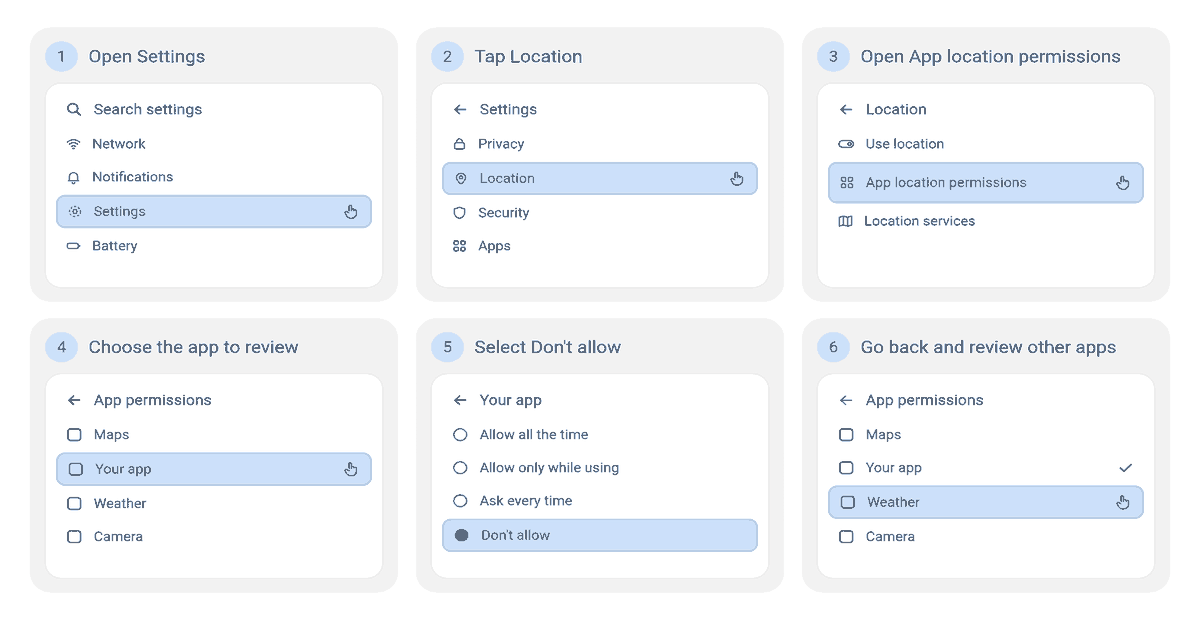
4. Change or remove an app’s location permission
You can adjust one app at a time, from either of two places.
From the location page
- Go to Settings → Location → App location permissions.
- Tap the app.
- Choose Allow only while using the app, Ask every time or Don’t allow.
From the app’s own settings
- Touch and hold the app icon and tap App info.
- Tap Permissions, then Location.
- Pick the option you want.
Turning off location doesn’t uninstall the app or delete your account. Some features, like maps or “near me” search, may stop working until you allow it again. And if you spot an app you never use, uninstalling it is the cleanest fix.
5. Share approximate location instead of precise location
On Android 12 and newer, you can let an app see just your general area instead of your exact spot. Google describes approximate location as an area of roughly 3 square kilometers, while precise location is your exact position.
- Open Settings → Location → App location permissions.
- Tap the app.
- Turn Use precise location off.
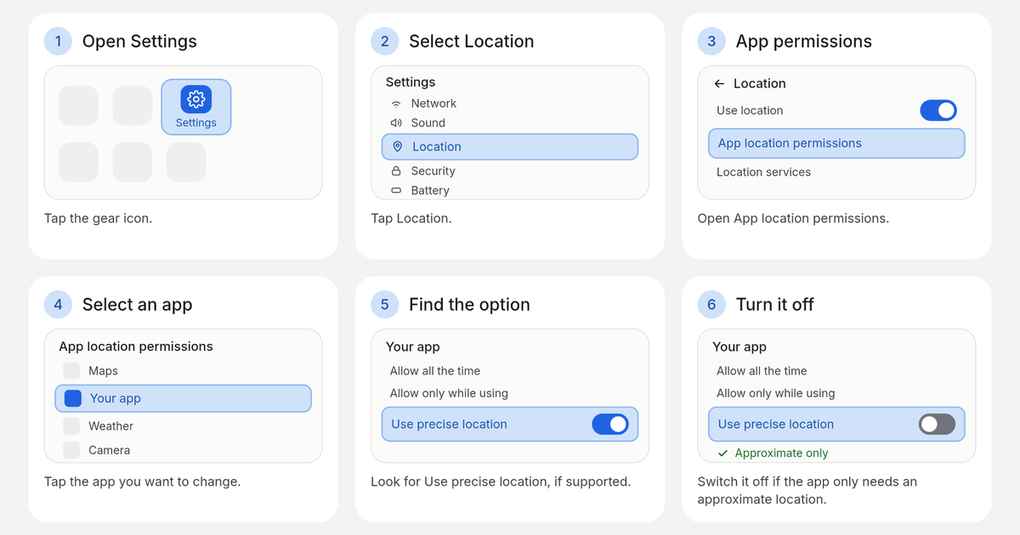
This switch is separate from the permission level above it, so an app can have “while using” access and only approximate accuracy. Apps may also show a Precise or Approximate choice in their first permission pop-up.
A weather app only needs your general area, so approximate works fine. Navigation and ride apps need precise location to do their job. Can’t find the toggle? Your phone is probably on Android 11 or older, or the app hasn’t asked for precise location.
6. Other location controls worth knowing
App permissions are only part of the story. These settings also affect how your phone shares where you are:
- The master switch. Turn Use location off in Settings → Location, or from the Quick Settings tile, to block location for every app at once. Maps, ride apps and device-finding features won’t work while it’s off.
- Automatic permission reset. Android can remove permissions from apps you haven’t opened for a while. You’ll find the setting on an app’s permission screen, and the name varies by phone.
- Location services. Settings → Location → Location services has Google Location Accuracy, Wi-Fi and Bluetooth scanning, and Emergency Location Service. Location Accuracy uses Wi-Fi, mobile networks and sensors to improve results.
- Timeline and Location Sharing. Google says Timeline is off by default. If you turned it on, it saves your location history, and you can review or switch it off in your Google Account. Location Sharing in Google Maps is managed separately from app permissions.
- Photo geotags. A camera app with location access can save where each photo was taken. Think about turning that off before you post photos publicly.
One honest caveat: an app without location permission can still make a rough guess at your area from your internet connection. These controls reduce what you share, but they don’t make you invisible.
7. Which apps really need your location?
Before you approve any request, ask yourself one question: does this app need to know where I am to do its main job?
| App type | Need for location | Suggested setting |
|---|---|---|
| Maps and navigation | Required | Only while using the app, precise |
| Ride-hailing | Required when booking | Only while using the app, precise |
| Food delivery | Useful for finding your address | Only while using the app, or ask every time |
| Weather | Approximate is enough | Only while using the app, approximate |
| Camera | Optional (adds location to photos) | Don’t allow, unless you want geotags |
| Social media | Optional (tags, nearby features) | Ask every time, or don’t allow |
| Calculator, notes, flashlight | Not needed | Don’t allow |
These are general examples, not strict rules. A calculator asking for your location deserves a second look, but features differ from app to app.
8. Common mistakes to avoid
- Tapping “Allow” on everything. Read the prompt and ask whether the app’s purpose explains it.
- Confusing permission with tracking. Permission shows what an app may do. The Privacy dashboard shows what it did.
- Ignoring “Allow all the time.” Background access should be rare, so check every app in that group first.
- Switching location off everywhere. You’ll break navigation, delivery and device-finding features you probably rely on.
- Never checking again. Take two minutes after installing new apps, and again every few months.
Frequently asked questions
How do I know which apps can access my location on Android?
Open Settings, tap Location, then App location permissions. Your apps are grouped by permission level, so you can see at a glance who has what.
Can an app access my location when it isn’t open?
Yes, if you gave it “Allow all the time.” With “Allow only while using the app,” it can use your location only while you’re using it. Having permission doesn’t mean the app is constantly using it.
How can I see which apps used my location recently?
Open Settings, go to Privacy or Security & privacy, tap Privacy dashboard, then Location. Android 12 shows 24 hours of history, and Android 13 and newer show 7 days.
How do I stop an app from using my location?
Go to Settings → Location → App location permissions, tap the app and choose Don’t allow.
Is approximate location better for privacy?
It shares less detail, because the app only learns your general area. It’s a good choice for apps like weather that don’t need your exact position.
Where are these settings on a Samsung phone?
Look under Settings → Location → App permissions, and Settings → Security and privacy → Privacy → Permission usage. Names can vary by One UI version.
Final thoughts
You don’t need to strip every app of location access. Review what’s installed, ask why each app wants it, and choose the narrowest option that still lets the app work. Start with the “Allowed all the time” group, then peek at the Privacy dashboard for surprises.
Want more guides like this? Browse our Cybersecurity & privacy section for more ways to protect your accounts and data, or head to Mobile technology for phone tips and explainers. You can also read how we handle your data in our Privacy Policy, or contact us if a step in this guide doesn’t match your phone.
Sources and further reading
- Manage location permissions for apps (Google Pixel Help)
- Manage permissions from the privacy dashboard (Android Help)
- Manage your Android device’s location settings (Android Help)
- Test your app’s location workflows (Android Developers)